How to Put a Drone in Bind Mode: A Beginner's Guide
Learn how to put your drone in bind mode with clear, brand-agnostic steps, safety tips, and troubleshooting. Ideal for beginners seeking a reliable binding process for FPV drones and transmitters.


To put a drone in bind mode, power on the transmitter first, enable bind mode on the transmitter (via a switch or button), then power the drone while holding the bind input. Watch for a blinking LED that indicates pairing and confirm by arming the drone or seeing a solid LED. Always consult your specific brand manual for exact steps, as bindings vary between systems.
Understanding Bind Mode: What It Is and Why It Matters
Bind mode is the process that creates a trusted radio link between your transmitter (the controller) and your drone or flight controller. It ensures that only your controller can communicate with the aircraft, preventing interference from other radios on the same wavelength. Bind methods vary by brand and flight stack, so the exact button presses or switches you use can differ. The core idea is simple: the drone listens for a binding signal from a paired transmitter, the two establish a secure link, and then normal control data starts flowing. For beginners, this is a critical first step in getting your FPV setup ready for safe flight. Throughout this guide, you’ll see references to “bind mode,” “binding,” and “binding procedure.” Remember that the specifics depend on your equipment, so always confirm with the manual or official support resources. According to Beginner Drone Guide, understanding the intent and constraints of bind mode helps you avoid accidental misbindings or unsafe flight attempts on the first test.
Prerequisites and Safety Checks Before You Bind
Before attempting to bind, ensure both transmitter and drone batteries are fully charged and you’re in a safe, open area away from people and obstacles. Check that you’re using the correct cable or power source for the binding sequence and that the firmware on both devices is up to date. Review your local laws and safety guidelines for drone operation, including altitude limits and no-fly zones. Verify you have a stable power source to prevent mid-binding power loss, which can corrupt the binding data. If you’re using goggles or an external receiver, confirm their firmware compatibility with your flight stack. Having a clean, organized workspace reduces the chances of misplacing bind buttons or switches during the process. Beginner Drone Guide’s analysis shows that preparing right the first time reduces re-binding attempts and speeds up setup.
Brand Variations: How Different Systems Implement Bind Mode
Binding methods differ across brands and flight stacks. Some systems use a dedicated Bind button on the transmitter, others rely on a switch or a sequence of button presses, and many modern setups require you to connect a USB cable to the flight controller to initiate bind mode. The drone’s receiver and flight controller must be compatible with your transmitter protocol (2.4 GHz, 5.8 GHz, or a hybrid). Betaflight-based stacks often use a bind button and power-on sequence, while DJI FPV components may integrate binding through the official app or a specific combo in the goggles. Always consult the official manual for your model, because a misstep can reset calibration or cause loss of control. As a general rule, the binding process involves the transmitter entering a listening/binding state, the drone awaiting a signal on a dedicated bind channel, and a successful link indicated by LED patterns or a ready-to-arm status.
Preparing Your Hardware: Battery Safety and Workspace Setup
A safe, well-lit workspace makes the binding process smoother. Remove props if you’re performing the binding on a live airframe for safety, or ensure you have a propeller removal tool available. Use fresh, fully charged batteries for both transmitter and drone to avoid mid-binding power loss, which could corrupt binding data and require a redo. Ground yourself to avoid static discharge on sensitive electronics. Keep small parts organized so you don’t confuse a binding button with a function button (like arming or flight mode). If you’re using external receivers or goggles, connect them according to the manufacturer’s instructions and verify that their batteries are charged and secured. The goal is a clean, uninterrupted binding sequence where the transmitter stays in bind mode for the minimum necessary time.
Step-By-Step: A Generic Binding Process for FPV Drones (Brand-Agnostic)
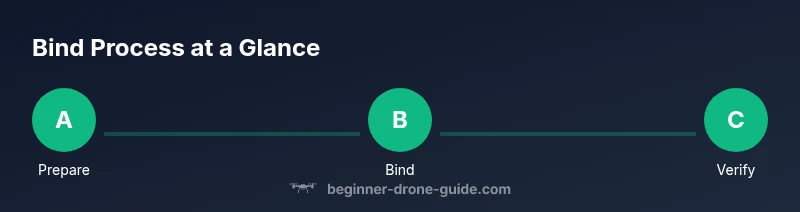
Bind mode setup typically follows these stages, though your exact sequence may vary:
- Prepare the transmitter and drone: ensure both are powered off and batteries are charged.
- Enable bind mode on the transmitter: use the appropriate switch or button per your brand’s manual.
- Power the drone into bind mode: this may involve pressing and holding a bind button on the flight controller or connecting a bind plug, then powering on.
- Wait for the binding signal: the LED on the drone or receiver will indicate binding activity (blinking) and then a stable state when bound.
- Confirm binding by attempting basic control: slowly move the sticks to see if the drone responds, or initiate a test arming sequence if your system supports it.
- Power off and re-test: turn both devices off, then power them back on to verify the link persists after reboot. The binding is considered successful when control commands are consistently transmitted and the LED indicates a stable link.
If you’re unsure about the exact steps, consult the model-specific manual and support resources. The time from start to a confirmed bind can vary from a few minutes to longer for complex setups.
Troubleshooting Bind Failures: Common Issues and Fixes
If binding fails, start with a simple checklist: verify batteries are charged, ensure you’re not binding to a different protocol (e.g., 2.4 GHz vs. 5.8 GHz), and confirm you’re using the correct bind sequence for your transmitter. Interference from nearby devices can cause missed bind attempts, so move to a quieter area or power down other transmitters during binding. Check for firmware mismatches between the transmitter and receiver or flight controller; a mismatch can prevent a successful handshake. Review LED patterns: slow blinking often means waiting for your bind signal, while rapid blinking may indicate a failed attempt. Some systems require a specific USB connection during the bind process; if so, ensure that the connection remains stable throughout binding. If your goggles or external receiver are part of the link, ensure their channels align with the drone’s binding protocol.
Verifying the Link: Calibrating and Testing After Binding
A bound link must be stable and repeatable. Begin with a ground test: connect the drone to a safe surface and perform arming and basic motor tests at very low throttle to confirm responsiveness. Then do a powered hover test in a controlled area, keeping your distance from people and obstacles. Validate channel mapping by moving each control stick to confirm corresponding axis movement on the drone. If any axis still responds incorrectly, rebind or recalibrate the transmitter’s channel assignments. Document the binding setup, including firmware versions and any peculiar steps unique to your model, so future maintenance or troubleshooting is easier. Consistently verifying the link after each power cycle reduces the risk of mid-flight loss of control.
Safety, Regulations, and Best Practices for Binding
Always obey local laws and safety guidelines when binding and operating drones. Keep away from crowded areas and maintain visual line of sight during initial tests. Use personal protective equipment if needed and never bind near crowds or active airports. Understand your drone’s weight, battery chemistry, and propeller type to choose compatible components and avoid overloading circuits during binding. Maintain a habit of documenting binding settings and firmware versions, which helps with troubleshooting and future upgrades. Beginner Drone Guide emphasizes that safe binding is foundational to responsible flight and long-term success in the hobby.
Brand-Specific Quick Glance: Bind Mode for Popular Models (Short Reference)
- Betaflight-based drones: typically use a bind button on the flight controller with power-on sequence; LED will blink then solid when bound.
- DJI FPV: binding often managed via the official app or goggles’ interface; ensure firmware compatibility.
- FrSky/Fly Sky: binding often involves holding a bind button on the receiver and selecting bind in the transmitter menu; watch for a solid LED.
- Holybro or other pilots’ stacks: the bind sequence varies, so always consult the exact model’s guide. This quick glance helps you locate the right pathway quickly when you’re in the field.
Maintenance of Bind Profiles and Documentation
Keep a clean log of bind profiles, including transmitter firmware, receiver firmware, and the binding channel. If you swap components, rebind and verify. Store documents and serial numbers in a dedicated notebook or digital file so you can easily replicate the binding in the future. Regularly update firmware to ensure compatibility with other devices, and review any changes in binding procedures after updates. Proper documentation makes future troubleshooting faster and reduces the risk of stale configurations that could lead to binding failures.
Authority Sources
- Federal Aviation Administration (FAA): https://www.faa.gov/uas
- Know Before You Fly: https://www.knowbeforeyoufly.org/
- National Academies Press: https://nap.edu
Quick Brand-Specific Hints and Quick-Start Cheatsheets
For beginners, create a personal cheatsheet that lists the bind steps for your specific model, the required switch positions, and the LED indicators to watch. This saves time on the field and reduces anxiety when binding. If something feels off, pause, re-check connectors, and consult the brand’s official documentation before proceeding. A well-prepared cheatsheet accelerates your learning curve and supports safer operation.
Tools & Materials
- Drone (unmanned aircraft)(Fully charged battery; prop guards removed if required for binding)
- Transmitter/Radio Controller(Ensure it is compatible with your drone's receiver protocol)
- Binding cable or USB cable(Some systems require USB connection during binding)
- Spare batteries for transmitter and drone(Have fully charged spares ready)
- Small screwdriver set(If you need to access the flight controller’s bind button)
- Manuals or brand guides(Keep handy for model-specific steps)
- Solar fan or cooling option (for long sessions)(Used if binding in hot environments)
Steps
Estimated time: 15-25 minutes
- 1
Prepare the gear
Power off both transmitter and drone. Inspect the drone for any damaged wiring, loose connectors, or propeller conditions. Ensure the area is clear and you have enough workspace to avoid accidental drops during binding.
Tip: Remove props if you’re worried about accidental motor engagement during steps. - 2
Enable bind mode on the transmitter
Engage the transmitter’s bind function as per the manual—this might be a physical switch, a combination of buttons, or a menu option. Confirm the transmitter indicator shows it is in bind mode.
Tip: If your transmitter has a switch, position it to the bind setting before powering the drone. - 3
Power the drone into bind mode
Power the drone while holding the bind button on the flight controller or using the prescribed binding procedure. Some systems require you to insert a bind plug or connect a USB cable during this step.
Tip: Do not press other buttons that affect calibration during this step. - 4
Wait for the binding signal
Watch the drone’s LED indicators; a blinking pattern typically indicates binding is in progress, followed by a solid LED when binding is successful.
Tip: If the LED sequence isn’t typical for your model, consult the manual or firmware notes. - 5
Confirm binding by testing control
With the drone powered and the transmitter in normal mode, gently test that throttle and yaw respond in the expected directions. Verify that the drone responds to stick input before arming.
Tip: Start with very low throttle to reduce risk during initial tests. - 6
Power cycle and verify persistency
Turn off both devices and power them back on to verify the binding remains after a reboot. If it fails, repeat the binding steps and check firmware compatibility.
Tip: Document the exact steps and firmware versions for future reference.
Frequently Asked Questions
What is bind mode and why do I need it?
Bind mode pairs your transmitter with the drone so only your controller can command it. This prevents interference from other radios and ensures a stable control link before flight.
Bind mode pairs your transmitter with the drone to establish a secure control link. This prevents interference and ensures you have control before flight.
Do all drones require binding?
Not all drones require binding. Some integrated systems (like certain DJI setups) use built-in pairing methods or app-based configuration. Check your model’s manual to confirm whether binding is needed.
Not every drone requires binding. Some rely on built-in pairing or app-based setup. Check your model’s manual to confirm.
What should I do if binding fails?
If binding fails, verify battery levels, firmware compatibility, and that you’re using the correct bind sequence for your system. Move to a low-interference area and retry with fresh batteries.
If binding fails, check batteries, firmware compatibility, and the correct bind sequence. Try in a low-interference area with fresh batteries.
How can I unbind or rebind if something goes wrong?
To unbind, use the manufacturer’s recommended method, often by a specific command or button sequence. Rebind by repeating the bind steps from the start with fresh batteries.
To unbind, use the brand’s method, then rebind from the start with fresh batteries.
Is bind mode the same across brands?
No. Bind procedures vary by brand and flight stack. Always follow the exact steps in your model’s documentation for reliable results.
No—binding differs by brand. Always follow your model’s exact instructions.
What safety checks should I perform after binding?
After binding, perform a ground test: check throttle response, yaw, pitch, and roll at low risk, then proceed to a cautious hover tests in an open area.
Do a ground test after binding: test all controls at low risk, then hover in open space.
Watch Video
Quick Summary
- Bind mode creates a secure link between transmitter and drone.
- Follow brand-specific instructions to avoid misbinding.
- Prepare batteries and workspace to prevent mid-binding failures.
- Verify binding with careful calibration and controlled tests.
- Document firmware and binding steps for future maintenance.