How to Connect a DJI Drone and Controller: A Beginner Guide
Learn a beginner-friendly method to connect your DJI drone and controller using the DJI Fly app. Includes essential pairing steps, quick troubleshooting, and safety tips for new pilots.


Power on the drone and controller, connect the mobile device to the controller, launch the DJI Fly app, and select your aircraft to establish a link. If binding is required, perform the binding procedure until the LED indicators confirm a solid connection. Ensure firmware is up to date and keep the environment free of large metal obstructions during pairing.
Why Proper Pairing Matters
A reliable connection between your DJI drone and its controller is the foundation of safe, responsive flight. Proper pairing ensures the controller sends commands accurately, the video feed stays stable, and the aircraft responds predictably to your inputs. For beginners, a quick, clean pairing reduces confusion during the first flights and helps you develop safe piloting habits. According to Beginner Drone Guide, taking a calm, methodical approach to bonding the two devices reduces common issues like frequent disconnects and phantom stick inputs. When pairing is done correctly, you’ll experience smoother takeoffs, better GPS lock, and quicker access to safety features like Return-To-Home. A solid link also makes it easier to update firmware and calibrate sensors, which are essential as you add more flights to your experience.
What You Need Before You Start
Before you attempt to connect, gather the basics and confirm compatibility. You’ll need a DJI drone model that is supported by the current DJI Fly app, a controller, a smartphone or tablet running the latest DJI Fly app, and charged batteries for both the drone and the remote. If your controller relies on a mobile device for the interface, have a USB-C or Lightning cable handy to connect the phone to the controller. A quiet, open space is ideal for the initial pairing to minimize signal interference. Finally, make sure you’ve checked for firmware updates on both the aircraft and the remote so you’re pairing with the latest software.
Understanding DJI Link Basics
DJI pairing typically happens through a combination of the controller, the aircraft, and the DJI Fly app. The app communicates with the drone to transfer flight data, video feed, and control commands. In most cases, turning on the controller first helps the system enter pairing mode smoothly, followed by powering up the drone. Some models support a quick binding process if you see a prompt in the app or a binding indicator on the LEDs. The key is to establish a stable RF link and confirm that both ends are using the same firmware family. If you see blinking lights or a weak video feed, it usually indicates a temporary link issue that can be resolved by reattempting the pairing steps and ensuring the app recognizes the aircraft.
Using the DJI Fly App to Pair
Open the DJI Fly app after both devices are powered. The app should display a prompt to connect to your aircraft; select the aircraft from the list. If the aircraft does not appear, ensure the drone is in pairing mode (per your model’s manual) and retry from the app’s connect screen. For models that require binding, you’ll need to press the binding buttons on both the drone and the controller until the LED indicators show a steady color. It’s important to keep the phone in airplane mode while pairing to prevent interruptions from incoming notifications—the app will handle the data connection automatically once linked. Once linked, perform a quick sensor check in the app and verify GPS lock.
Model Variations You Should Expect
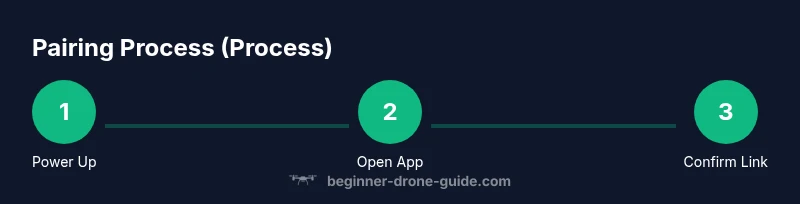
Different DJI models have slightly different pairing flows. Entry-level drones like the Mini series often pair with minimal steps but may require app-based initiation from the home screen. More advanced models might include additional prompts for firmware checks, compass calibration, or rapid-bind sequences. Always consult the latest model-specific guide from DJI’s official support site if you run into model-only steps. In practice, you’ll generally follow three core phases: power up, app-based pairing, and binding if prompted. If you’ve just updated firmware, revisit the pairing process to ensure a clean link with the new software.
Common Pairing Problems and Fixes
If pairing fails, start by confirming both devices are fully charged and have current firmware. Reboot the controller and drone, then reattempt the pairing sequence from the app. Ensure you haven’t connected a different device to the controller’s USB port, and disable any Bluetooth or USB tethering on the phone that could interfere with the link. If the app still doesn’t recognize the aircraft, try performing a factory reset on the controller if your model supports it, and retry. If binding is required, make sure you follow the exact order described in your manual: power on the controller, then the drone, and initiate binding from the app when prompted.
After Pairing: Safety Checks and Best Practices
Once you have a stable link, perform basic safety checks before the first flight: confirm control authority by gently moving the sticks and watching the drone respond, scan for GPS signal strength, and enableAltitude/Geofence settings if available. Calibrate compass or IMU as recommended by the manufacturer, especially if you’ve transported the drone or flown in areas with metallic interference. Always test the Return-To-Home function in a safe, open area to ensure the system is aware of your home coordinates. Maintain a maintenance schedule for firmware checks and propeller inspection to reduce post-pairing faults.
Field-Proofing Your Connection
In the field, environmental factors can affect pairing stability. Avoid pairing near large metal structures, power lines, or dense Wi‑Fi networks that can cause interference. If you notice a drop in video clarity, switch to a higher video mode or reduce channel interference via the app settings. Keeping the drone and controller within line-of-sight reduces latency and improves telemetry reliability. Plan battery management ahead of time: ensure you have spare batteries and ground clearances that align with your local regulations. Practicing in calm, open spaces builds confidence and reduces anxiety around a temporary disconnect.
Getting Comfortable with the Controller and App
Take time to customize controller sticks, button mappings, and gimbal control speeds to suit your flying style. Use the app’s practice modes or beginner flight presets to ease into handling. Read the on-screen prompts and watch for subtle indicators that can warn you about low signal, compass misalignment, or UAV safety alerts. Regularly review the app’s tutorials for features like geofencing, Return-To-Home, and mission planning. The more comfortable you are with the interface, the faster you’ll respond to on‑screen cues during a real flight.
Next Steps for New Pilots
After you’ve established a reliable pairing, plan your next flights with progressive goals: start with a simple hover, then attempt a basic waypoint or cinematic shot in an open space. Keep a flight log to track what works and what doesn’t, and schedule periodic firmware checks to stay current. Joining beginner communities or watching official tutorials from DJI can accelerate your learning curve and keep you motivated. Remember: the most important skill in drone piloting is situational awareness and safer decision-making.
Authority Sources
For deeper technical details on pairing specifics by model and firmware, refer to the following authoritative resources:
- DJI Official Support: https://www.dji.com/support
- FAA UAS Rules and Safety: https://www.faa.gov/uas
- IEEE Xplore - Drone Communications and Networking: https://ieeexplore.ieee.org
Tools & Materials
- Drone (DJI model)(Ensure it’s the model you intend to fly.)
- Controller(Check battery and firmware compatibility.)
- Smartphone or tablet(With the latest DJI Fly app installed.)
- Charged batteries for drone and controller(Keep spares ready.)
- USB-C or Lightning cable(Only needed if your controller depends on a phone connection.)
- Official DJI Fly app(Install from your app store and keep updated.)
Steps
Estimated time: 15-25 minutes
- 1
Power on the drone and controller
Turn on the controller first, then power on the drone. This sequence helps the system enter pairing mode smoothly. Observe the LED indicators for the controller and aircraft to confirm they’re ready. If you don’t see expected lights, retry with fresh batteries.
Tip: Power-on order matters; starting with the controller helps the app recognize the aircraft earlier. - 2
Connect your mobile device to the controller
Attach your phone to the controller and ensure the connection remains stable. If your controller has a built-in screen, skip this step. Otherwise, select the DJI Fly app on the device to initiate pairing. Disable other wireless devices that could cause interference.
Tip: Use a clean USB-C/Lightning cable and avoid long, multi-point chargers during pairing. - 3
Open the DJI Fly app and locate your aircraft
Launch the app and navigate to the aircraft connection screen. The app should list your drone; select it to start the linkage process. If the aircraft does not appear, verify power, firmware, and proximity to the controller.
Tip: Keep the drone and controller within line-of-sight during initial pairing. - 4
Initiate binding if prompted
If the app asks for binding, follow the on-screen prompts and perform the binding procedure on both devices. Watch the LED indicators; a solid color typically confirms a sealed link. Do not move the devices excessively during binding.
Tip: Only initiate binding when the app instructs you to avoid unintentional resets. - 5
Verify link status and GPS lock
In the app, verify signal strength, remote control responsiveness, and a solid GPS lock. Calibrate compass or IMU if prompted, especially after transport or strong magnetic fields nearby.
Tip: If GPS is weak, relocate to open space away from tall structures or interference sources. - 6
Run a quick preflight check
Check propellers for secure attachment, run a short hover test, and confirm Return-To-Home is functioning as intended. Review geofence restrictions for your flight area before takeoff.
Tip: A brief preflight check reduces the risk of mid-flight surprises.
Frequently Asked Questions
How long does pairing typically take for a basic setup?
Most basic pairing is a quick process that finishes in a few minutes, depending on model and firmware. If you encounter delays, recheck power and app recognition, then retry the bond.
Most basic pairing finishes in a few minutes; if you see delays, recheck power and try again.
What should I do if the controller won’t bind with the drone?
Ensure both devices are charged, update firmware, and follow the model-specific binding order. If problems persist, restart both devices and attempt binding again from the app.
Make sure both devices are charged and firmware is up to date; restart and try binding again from the app.
Do I need an internet connection to pair the devices?
No, you don’t need a live internet connection to pair. The DJI Fly app uses local RF for bonding. An internet connection helps with firmware updates and map data, but is not required for initial pairing.
You don’t need internet to pair; it’s local RF bonding. Internet helps for updates and maps, not required for pairing.
Can I pair without a phone or tablet?
Most DJI models rely on the DJI Fly app on a mobile device for pairing and control. Some drones with built-in screens or controller SDKs may work differently, but in general you’ll use a phone or tablet.
Generally you’ll need a mobile device to pair, unless you have a model with a built-in screen.
What is the difference between binding and linking?
Binding or linking refers to establishing a secure, exclusive connection between your controller and drone. The terms vary by model, but both describe the process of creating a reliable control link.
Binding and linking both describe establishing a reliable connection; terminology varies by model.
If the signal drops during flight, what should I do?
Immediately navigate the drone back to a safe area, try to reestablish a link by returning to the pairing screen, and ensure GPS is strong before attempting to fly again. Do not continue a flight if the link is unstable.
If the signal drops, return to home safely and reestablish a solid link before flying again.
Watch Video
Quick Summary
- Power on sequence matters for clean pairing.
- Use the DJI Fly app to manage the linkage.
- If binding is required, follow model prompts exactly.
- Verify GPS and perform a preflight check before flying.
- Keep firmware and app up to date for best results.