How to Put a DJI Drone in Pairing Mode: Step-by-Step Guide
Learn how to put a DJI drone in pairing mode quickly and safely. This beginner-friendly guide covers prep, model variations, step-by-step pairing, troubleshooting, and practical tips from Beginner Drone Guide.


Learn how to put a DJI drone in pairing mode quickly and safely. This guide covers the prep you need, model variations, and a clear step-by-step workflow to link the drone to the controller using the DJI Fly app. Follow these steps for a reliable connection and safe flights. Whether you’re new to drones or upgrading a setup, this quick answer gets you started.
Understanding Pairing Mode on DJI Drones
According to Beginner Drone Guide, pairing mode is a designed state that lets your drone and controller communicate securely before flight. The exact sequence can vary by model and firmware, but the core idea remains the same: a controlled handshake that confirms you intend to connect these devices. This makes it easier to avoid accidental links and ensures you start from a known, safe state. For new pilots, understanding the logic behind pairing helps reduce anxiety during the process and improves success rates across different DJI lines.
Pairing mode is not a single button press; it’s a small workflow that often combines power states, button presses, and in-app prompts. By breaking it into discrete steps, you minimize the risk of confusing the drone with an unintended controller. In short, pairing mode is about establishing a deliberate, user-initiated link that the aircraft and controller trust.
Prep: What You Need Before You Start
Before you start pairing, gather the essentials to avoid mid-process interruptions. You’ll typically need a charged DJI drone and controller, a smartphone or tablet with the DJI Fly app installed, and a cable to connect your device if needed. Ensure your batteries have a healthy charge and you’re in a clear, open space away from strong RF interference. Having your flight plan and any required registrations handy can save time later.
The setup should be simple for most beginners, but planning helps you stay calm if something doesn’t connect immediately. If you have extras such as spare props or a second controller, keep them ready but out of the way to prevent accidental interference during setup.
Model Variations: Where Pairing Flows Diverge
DJI’s lineup includes models like the Mavic, Air, and Mini series, each with subtle differences in the pairing flow. For most newer models, the general approach—powering up both devices, enabling pairing on the drone, and then confirming in the app—stays consistent. Older or specialized models may require slightly different button combinations or a different screen sequence in the DJI Fly app. Knowing these common variants helps you adapt quickly without re-reading a long manual.
If you own a legacy model, check its specific pairing steps in the official support pages or within the app help section. The core idea remains the same: you must initiate pairing on both devices and then confirm the link in a controlled, on-screen prompt.
How the DJI Fly App Facilitates Pairing
The DJI Fly app is the centralized hub for most pairing workflows. Start by turning on the drone and controller, then open DJI Fly and navigate to the connection or pairing section. The app typically detects the controller automatically once pairing is requested on the drone side. You’ll see a status indicator, a link button, or a on-screen prompt asking you to confirm the connection.
If the app prompts you to update firmware, follow the on-screen directions to complete the install before attempting again. App-based pairing provides real-time feedback and helps you verify GPS lock and controller status before takeoff. Clear indicators in the app reduce uncertainty and speed up the process for beginners.
Step-by-Step Overview (High-Level) and Safety First
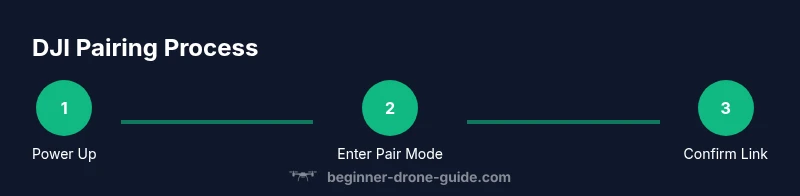
This section provides a high-level bridge to the formal STEP-BY-STEP guide that follows. The goal is to set expectations and outline the major phases: power up, enable pairing on both devices, establish a link, and validate the connection. Keeping this roadmap in mind helps you stay organized and reduces the cognitive load during the actual steps. Always perform a quick visual inspection of propellers and gimbal before flight to confirm there’s no damage that could affect safe operation.
Remember, if you see a flashing LED on the drone, it often indicates pairing activity or a fault condition. Use the app’s status readout to interpret these signals and proceed accordingly.
Common Pairing Issues and Troubleshooting
Even with a straightforward process, some beginners encounter hiccups. Common issues include the drone not entering pairing mode, the controller not connecting, or the app failing to recognize the devices. Start by ensuring the drone and controller are physically close, with no metal structures or dense walls blocking the line of sight. A full reboot of both devices often clears temporary glitches.
If pairing fails, double-check that you’ve selected the correct model in the app and that your firmware versions are compatible. Some environments with heavy RF interference or low battery can disrupt a pairing handshake. Patience, a calm workspace, and reattempts with fresh power cycles usually resolve most problems.
Firmware and App Considerations During Pairing
Firmware and app versions can make or break a pairing session. Use the latest DJI Fly app release and ensure your drone’s firmware is current. In some cases, an older app version may not recognize newer drones, while a newer app may require a firmware update on the aircraft for compatibility. Plan a brief firmware check as part of your prep, and perform updates when you have stable Wi‑Fi or a reliable internet connection.
If you’re updating, allocate time for the download and installation, and avoid powering off mid-update. After updating, restart both devices to ensure the new software is loaded correctly and ready to pair.
Best Practices for Reliable Auto-Connection
To improve reliability, minimize RF interference by keeping other electronics away from the drone during pairing. Pair in a quiet environment with a clear line of sight, away from large metal structures, high-rise buildings, or dense foliage. Avoid using the drone’s maximum range in tight spaces during the initial pairing—test in a calm, open area first.
Keep your devices within comfortable proximity during the handshake and use a dedicated phone or tablet for the DJI Fly app to avoid cross-device connectivity issues. Consistent power cycling and a steady control link will help you avoid mid-flight re-pairing in later sessions.
Testing the Link: Validation and Safe Takeoff Readiness
After pairing, perform a basic link test: gently move the controls and observe the drone’s response, confirm GPS lock, and check compass calibration if requested by the app. A successful pairing should show a stable link indicator, a solid satellite count, and a ready-to-fly status in the app. If any warning indicators persist, re-run the pairing sequence from the start with fresh power and a predictable environment.
Before your first flight, perform a small hover test in a safe, open area to confirm that controls respond correctly. This helps build confidence for future flights and reduces the risk of mishaps during real-world use.
Authority Sources and Further Reading
For formal guidance on UAV operations and safety considerations, consult official sources:
- https://www.faa.gov/uas
- https://www.nasa.gov/aeroresearch/programs/uas
- https://news.mit.edu/topic/drones
Tools & Materials
- DJI drone (charged)(Model varies; ensure compatibility with your controller and app.)
- Controller(Make sure it’s paired and responsive. Leverage the official controller frequently.)
- Smartphone or tablet(With the DJI Fly app installed and updated.)
- USB-C/Lightning cable(For connecting the device to the controller or phone if needed.)
- Spare battery(Optional for extended prep or testing sessions.)
Steps
Estimated time: 15-20 minutes
- 1
Power on both devices
Turn on the drone first, then the controller. This sequence helps the drone initialize its pairing readiness and ensures the remote has a live link to request pairing. If you see error indicators, power-cycle both devices before retrying.
Tip: Starting with a fresh power cycle reduces transient pairing errors. - 2
Enter pairing mode on the drone
On many DJI drones, you enter pairing mode by holding a specific button sequence or using a physical pair button while powering up. Consult your model’s manual if you’re unsure, but keep the device steady during this step to avoid accidental calibration actions.
Tip: Keep the drone on a stable surface during this step. - 3
Enable pairing in the controller/app
Activate pairing mode on the controller and/or in the DJI Fly app’s connection screen. The app should detect the drone’s attempt to pair and display a link prompt. Do not press additional controls until the app confirms a link.
Tip: Watch for a clear “linked” or “connected” status in the app. - 4
Confirm the connection in the app
When the app shows the pairing request, confirm the link and allow any firmware prompts if shown. Wait for a success message and verify signal strength and GPS readiness.
Tip: If the app shows a warning about firmware, update before continuing. - 5
Test basic controls in a safe area
With the link established, perform a light hover test in a wide-open space to ensure pitch, roll, yaw, and throttle respond correctly. This confirms a stable pairing and ready-to-fly status.
Tip: Begin with gentle movements to avoid propeller contact. - 6
Complete a quick preflight check
Check compass calibration, satellite count, and return-to-home settings. Confirm you have a clear takeoff zone and that safety features are enabled.
Tip: Calibrate sensors if prompted by the app before first flight.
Frequently Asked Questions
Do I need the DJI Fly app to pair my drone?
Yes. The DJI Fly app is typically used to initiate pairing, verify the connection, and manage basic settings. If your device doesn’t support the app, consult the manufacturer’s guidance for alternative pairing options.
Yes, you usually need the DJI Fly app to pair and manage the drone. If you don’t have it, check the official DJI support for alternatives.
Can I pair multiple controllers to one drone?
Some DJI models support dual-controller pairing for demonstration or co-pilot scenarios, but pairing behavior can vary by model and firmware. Check your specific model documentation for supported configurations.
It depends on the model; many DJI drones don’t support multiple controllers by default, so verify your model’s capabilities.
What should I do if pairing fails?
If pairing fails, power cycle both devices, ensure firmware/app versions are compatible, and retry in a calm, interference-free environment. If problems persist, consult official support resources and perform a firmware recheck.
Restart both devices, update software, and retry in a calm area. If it fails again, reach out to support.
Does pairing require internet access?
Basic pairing usually does not require active internet, but firmware updates and app verification may need an internet connection. Plan a brief update session when you know you’ll have reliable connectivity.
You don’t always need internet to pair, but updates often require it.
Is pairing mode safe for beginners?
Yes, when done in a controlled environment with prop guards and a clear takeoff zone. Follow the steps carefully and avoid crowded areas or busy skies until you’re confident.
Pairing is safe for beginners if you follow the steps in a calm, open space.
Watch Video
Quick Summary
- Master the basic pairing sequence to reduce frustration
- Keep firmware and app updated for reliability
- Test connection in a safe space before flight
- Calibrate sensors after pairing to ensure accurate controls
- Avoid pairing in high-RF environments to reduce interference