Troubleshooting Drone Wi-Fi: Why It Won't Connect
Step-by-step guide to fix why your drone won't connect to Wi-Fi, covering firmware checks, app compatibility, network settings, interference mitigation and safe reset tips for beginners.


Most often, a drone won’t connect to wifi because the firmware or app is out of date, or you’re not on the correct network. Quick fix: restart the drone and controller, verify you’re joining the right Wi‑Fi, update both the firmware and the companion app, and re‑pair. If that fails, reset network settings or perform a factory reset.
Understanding how drone Wi-Fi works
Drones that rely on onboard Wi‑Fi or a controller-assisted wireless link communicate using a packetized network. The connection can be fragile: firmware mismatches, app compatibility issues, or simply choosing the wrong network can prevent the drone from joining. For beginners, it helps to picture the problem as a chain of trust: the drone, the controller, and the mobile device must all trust and recognize the same network or pairing configuration. If you’re asking, “why is my drone not connecting to wifi,” start with the simplest checks before diving into deeper settings. Basic steps like power cycling, verifying the exact SSID, and confirming password accuracy often resolve the issue quickly. Remember that progress depends on both the drone and the controlling device, so ensure both are awake and ready to pair. As you troubleshoot, keep your battery safety in mind and stay in a safe, open area so you can test connections without flight risk.
Check the basics: network name and password
When troubleshooting why is my drone not connecting to wifi, the most common culprits are incorrect network details or using the wrong SSID. Start by confirming you’re connecting to the drone’s intended network (not your phone’s hotspot or a neighbor’s router). Make sure you’re using the exact network name and password shown in the drone’s app or manual. If the password was recently changed, update the credentials in the app and retry. Also confirm that the drone isn’t attempting to join a hidden network, which typically requires manual entry of the SSID and password. A quick forget-and-reconnect often resolves misremembered credentials. Finally, hold the drone and controller close together during pairing to avoid a weak link in the signal.
Firmware, app, and controller compatibility
Outdated firmware or a mismatched app version are frequent reasons behind wifi issues. When troubleshooting why is my drone not connecting to wifi, ensure the drone’s firmware is up to date and that you’re running the latest version of the companion app. Check for known bugs or compatibility notes with your drone model and your mobile device’s OS. If a device is running an incompatible version, the drone may refuse to connect or drop the link soon after it starts. After updating, reboot both the drone and the controller and attempt a fresh pairing. As you verify updates, it’s wise to review any release notes that mention connectivity changes or security enhancements.
Interference and environment factors
Interference can sabotage wifi connections and is a frequent yet overlooked reason behind why is my drone not connecting to wifi. Physical obstacles, metal surfaces, and crowded wireless environments degrade signal quality. Keep the drone close to the controller during initial pairing and test in an open area away from Wi‑Fi routers, Bluetooth devices, and large metal structures. If you’re in a busy neighborhood or at an event, switch to a less congested channel if your drone offers manual channel selection. Also consider the time of day—crowded airwaves peak in the evenings, which can affect connectivity.
Resetting and recovery options
If the issue persists after checking networks, firmware, and interference, you’ll want to explore reset options. In many models, you can reset the drone’s network settings to factory defaults from the app or the drone’s physical button combination. This is an effective remedy when the device has cached old credentials or a corrupted pairing record. After a reset, you’ll need to re‑establish the controller link and reconfigure any custom settings. Always perform a reset as a last resort before seeking support, as it erases saved preferences. Remember to back up any critical settings if your drone provides a cloud or phone backup option.
When to seek professional help and safety reminders
If you’ve followed the steps above and still can’t connect, it’s prudent to contact the manufacturer’s support line or authorized service center. A hardware fault in the Wi‑Fi module is possible, though less common than firmware or user error. Do not attempt risky hardware repairs yourself—this could void warranties or introduce safety hazards. In all cases, ensure you fly only in safe, legal environments and adhere to local regulations. For new pilots, keep a log of firmware versions and steps tried; this helps when you escalate the issue to support and minimizes back‑and‑forth.
Quick wins checklist for immediate results
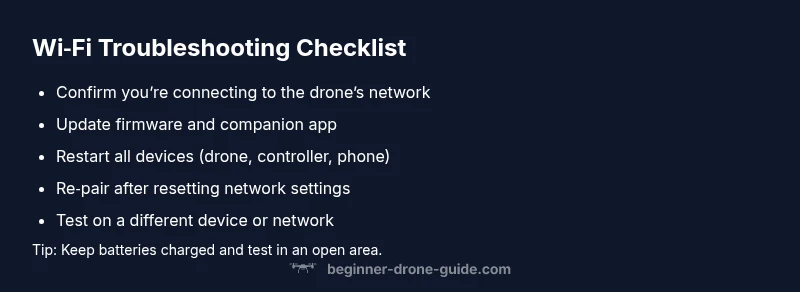
- Verify you’re connected to the drone’s intended Wi‑Fi network.
- Update firmware and the companion app to the latest versions.
- Restart all devices and re‑pair from scratch.
- Move closer to the drone and reduce nearby interference.
- If needed, perform a factory reset following the manufacturer’s instructions.
Steps
Estimated time: 30-60 minutes
- 1
Power cycle and restart
Power off the drone and controller completely. Wait 15 seconds, then power back on. This clears temporary glitches and reinitializes the wireless stack. Try to connect again using the correct network.
Tip: Keep the battery charged to avoid mid-test shutdowns. - 2
Verify network name and password
In the drone app, confirm you’re selecting the drone’s own network (not your phone’s hotspot). Re-enter the password exactly as shown. If the password was changed recently, update it everywhere you connect.
Tip: Copy/paste credentials to avoid typos. - 3
Update firmware and app
Check for available firmware updates for the drone and a matching app update. Install both, then perform a device reboot and attempt reconnection.
Tip: Don’t interrupt updates; use a stable power source. - 4
Re-pair and test
Initiate a fresh pairing sequence between the drone and controller or mobile device. If your model uses a QR or button-based pairing, follow the exact steps in the manual.
Tip: Be patient; some devices require a few extra seconds to finalize pairing. - 5
Check app permissions and settings
Ensure the drone app has location, Bluetooth, and Wi‑Fi permissions as required. Some phones restrict background network activity that can affect connectivity.
Tip: Close other apps that might steal Wi-Fi focus during pairing. - 6
Test on a different network/device
Attempt to connect using a different network (e.g., a home router or a mobile hotspot) and/or a different phone/tablet. This helps determine if the issue is the drone or the control device.
Tip: If it works on another device, the problem is likely the original controller or phone. - 7
Factory reset if needed
If allowed by your manufacturer, perform a factory reset of the drone to restore default settings. This removes cached data that might block connectivity.
Tip: Back up any saved settings if available before resetting.
Diagnosis: Drone won't connect to Wi-Fi
Possible Causes
- highOutdated firmware or app
- highIncorrect network name or password
- highConnecting to the wrong network (e.g., hotspot)
- mediumWeak signal or interference
- mediumController or mobile device compatibility issues
- lowHardware issue in the drone's Wi-Fi module
Fixes
- easyPower cycle the drone, controller, and mobile device; reattempt pairing
- easyUpdate drone firmware and companion app to latest versions
- easyForget the current network and reconnect with the correct SSID and password
- easyReset drone network settings to factory defaults
- easyTest on a known-good network or with a different device to isolate device
- mediumPerform factory reset if allowed by manufacturer instructions
- easyContact manufacturer support for hardware diagnosis
Frequently Asked Questions
Why can't my drone connect to wifi even after updates?
If updates don’t resolve the issue, review network details, retry pairing, and test with another device. A hardware fault is possible but less common.
When updates don’t fix it, re‑check the network and try pairing again. If it still fails, a hardware fault could be the culprit.
Can I connect the drone to my phone’s hotspot for setup?
Some models support direct connection to a phone’s hotspot for initial setup; others require the manufacturer’s direct link. Check your manual for model-specific guidance.
Some drones can pair with a phone hotspot during setup; others require direct pairing through the manufacturer’s app.
Is it safe to factory reset the drone?
Factory reset is generally safe but erases saved settings. Follow the manufacturer’s procedure and back up any important configurations first.
Yes, but it erases saved settings. Follow the steps in your manual and back up what you can.
What if the Wi‑Fi module is damaged?
Hardware issues require professional service or replacement. Verify warranty coverage and contact official support channels for diagnosis.
If the Wi‑Fi hardware is damaged, contact support for diagnosis and possible replacement under warranty.
How can I improve Wi‑Fi range and stability?
Minimize obstacles, keep devices elevated, and ensure you’re within range. Use updated firmware that optimizes wireless performance and reduce nearby interference.
Keep the drone and controller close, reduce obstacles, and ensure firmware is up to date for better stability.
Do I need to worry about licensing or regulations when troubleshooting?
Connectivity troubleshooting itself isn’t a licensing issue, but always follow local drone regulations and any airspace rules when operating or testing.
Connectivity fixes don’t usually require licensing, but follow all local drone regulations during testing.
Watch Video
Quick Summary
- Start with simple power cycles and updates.
- Double-check the exact network name and password.
- Firmware/app alignment is critical for connectivity.
- Use factory reset only as a last resort.
- Seek support if hardware issues are suspected.