How Drones Connect to Your Phone: A Beginner Guide
Discover how drones connect to your phone: compare WIFI and Bluetooth pairing, steps to set up the app, pairing flow, and essential safety tips for new pilots.


To fly a drone with your phone, install the drone’s companion app, power on the drone, and connect via the drone’s Wi-Fi network or Bluetooth pairing. Most beginners start with Wi-Fi direct pairing, then test controls in a safe open space. Ensure firmware is up-to-date and your phone meets the app requirements.
How a drone connects to a phone: the essentials
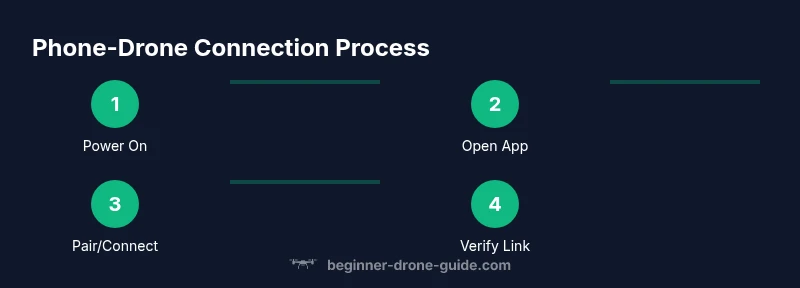
Connecting a drone to a smartphone hinges on two common pathways: a direct Wi-Fi network broadcast by the drone and a Bluetooth link used for supplementary data. Some brands also provide a dedicated companion app that creates a control channel over a local network or internet. According to Beginner Drone Guide, the typical flow starts by installing the official app, powering on the drone, and initiating pairing from the app. Once connected, you’ll see live telemetry, camera feed, and basic controls on your phone screen. Keep in mind that the exact steps can vary by manufacturer, so always refer to the user manual for model-specific details.
Connection methods explained: Wi-Fi Direct vs Bluetooth vs proprietary apps
Wi-Fi Direct (or direct Wi-Fi) is the most common method for consumer drones. It creates a temporary local network between phone and drone, delivering low-latency control signals and streaming video. Bluetooth is lighter weight and typically used for small data tasks like status checks or to wake the drone, but it often lacks the bandwidth for live video. Some drones rely on proprietary apps that bundle the drone’s own pairing flow, sometimes offering cloud features or automatic firmware checks. For beginners, starting with the official app and the Wi-Fi direct method usually provides the most reliable, straightforward experience.
Preparing your device: check compatibility and requirements
Before attempting a connection, verify that your phone meets the app’s minimum requirements and that the device is charged. Update the drone’s firmware and the companion app to the latest version, and check for any region-specific restrictions. Disable other apps that might compete for Bluetooth or location permissions during pairing to avoid interference. Ensuring a clean environment with strong power ensures a smooth pairing. If you face issues, consult the manufacturer’s troubleshooting guide.
Wi-Fi connection flow: overview of the typical pairing process
With Wi-Fi based pairing, the drone broadcasts a network name that you connect to from your phone. After joining that network, you return to the drone’s companion app and select Connect or Pair. The app then negotiates credentials and confirms a secure link. Once the status shows connected, you can view the live video feed and begin control. If prompted, apply any on-screen calibrations before takeoff.
Bluetooth pairing flow: overview for small devices
Some drones use Bluetooth to enable a quick pairing. Turn on Bluetooth on your phone, then in the app choose Pair a new device. The app may display a pin or require you to confirm a number on the screen and the drone; approve the pairing if they match. After pairing, the app establishes a local data channel for control and telemetry. Because Bluetooth has limited range and bandwidth, this method is usually used for setup or compatibility checks rather than real-time video streaming.
Using the companion app: setup and first connection
The companion app is the hub for configuring flight modes, camera settings, and safety features. Open the app, grant necessary permissions (location, camera, storage), and follow the on-screen prompts to add a new drone. The app will guide you through selecting the connection method, discovering the drone, and finalizing the pairing. If the app prompts for firmware update, approve, but ensure the drone is plugged into a charger and has a stable power source.
Troubleshooting common connection issues
If the phone cannot find the drone, move closer and ensure both devices are visible and not blocked by metal or glass. Restart the app and reboot the drone if needed. Check that airplane mode is not interfering and that the phone’s Bluetooth and Wi-Fi radios are enabled. When using Wi-Fi direct, make sure you are not connected to an external network; the drone is typically its own access point. If the video feed lags, reduce the video resolution or close other bandwidth-heavy apps. Beginner Drone Guide analysis shows that most beginners succeed with the official app and standard pairing flows.
Security and privacy considerations when connecting
Only connect to the official app from the drone’s maker and avoid third party tools. When possible, use a secure pairing method with a device password or PIN. Keep firmware updated to close vulnerabilities and be mindful of apps requesting screen recording or camera access. After flight, disconnect and forget the drone’s network so it does not auto-connect to strangers in open areas.
Performance tips for stable connections during flight
A stable connection depends on both hardware and environment. Keep your phone close to the drone, stay within the manufacturer’s recommended range, and minimize interference from other wireless devices. Use the lowest latency setting your app offers, and disable background Bluetooth devices temporarily during flight. In outdoor environments with wind or reflective surfaces, test the link in a safe area before committing to a full flight.
Real-world examples: beginner drones pairing flows
Popular beginner drones ship with intuitive pairing flows and clear prompts. In many cases, the UI guides you to turn on the drone, launch the app, select Connect, and accept a pairing request. For low-light conditions, some apps provide hover indicators and battery warnings that help you manage the link status while you set up safe flight.
Maintenance after pairing: firmware checks and re-pairing
After a successful pairing, check for firmware updates on both the drone and the app. Keep a log of firmware versions and re-pair if you notice any instability or drift in controls. If you must re-pair, reset the drone to factory settings and repeat the pairing process from a fresh start.
Next steps: validating control and safety before takeoff
Always perform a pre-flight check that includes control responsiveness, GPS signal, compass calibration, and firmware status. Do a short hover test in a safe area to confirm stability, then gradually increase altitude while monitoring the connection. Remember to stay mindful of people and property, and follow local regulations for drone operation.
Tools & Materials
- Smartphone with Bluetooth and Wi-Fi(Ensure the device is charged and compatible (Android 8+/iOS 12+ recommended))
- Drone and its official companion app(Download from the official store; keep to latest version)
- USB cable or charging adapter(For firmware updates and data transfer if supported)
- Drone user manual(Reference for model-specific pairing steps)
- Clear testing area(Safe, open space free from people and obstacles)
- External power bank (optional)(Keep devices powered during long sessions or updates)
Steps
Estimated time: 30-50 minutes
- 1
Power on drone and phone
Power on the drone first, then unlock and wake your phone. Give both devices a moment to boot so their radios can initialize. This prevents pairing attempts from failing due to a still-booting system.
Tip: Let the drone finish its startup sequence before proceeding. - 2
Open the official app
Launch the drone's official companion app and grant any required permissions (location, camera, storage). Having permissions granted reduces friction during pairing.
Tip: Close other apps that might interfere with Bluetooth or GPS signals. - 3
Choose the pairing method
In the app, select the preferred pairing method (Wi-Fi Direct or Bluetooth). If you’re unsure, start with Wi-Fi Direct since it supports video feed.
Tip: Wi-Fi Direct is usually more reliable for live video streaming. - 4
Connect to the drone's network (Wi‑Fi)
On your phone, connect to the network named after the drone. This creates a direct link for control data and video.
Tip: If you don’t see the network, toggle airplane mode off and try again. - 5
Return to the app and pair
Go back to the app and tap Pair or Connect. The app negotiates credentials and establishes the secure link.
Tip: Watch for a confirmation or status indicator that shows a solid connection. - 6
Authorize on the drone
If prompted, approve the pairing on the drone’s interface or LED indicators. Some models require you to press a pairing button.
Tip: Look for a confirm sound or LED pattern indicating success. - 7
Calibrate sensors if requested
First-time connections often require compass or IMU calibration inside the app. Follow the on-screen steps precisely.
Tip: Calibrate on a flat, magnetic-free surface to improve accuracy. - 8
Test basic controls while stationary
Gently test throttle, yaw, and roll while the drone is holding position. Stop immediately if any abnormal behavior occurs.
Tip: Keep hands clear and maintain a tight line of sight. - 9
Check for firmware updates
If the app prompts for a firmware update, proceed while the drone is connected and charged. Updates can fix bugs and improve stability.
Tip: Do not disconnect during a firmware update. - 10
Reboot if connection drops
If the connection becomes unstable, reboot both the phone and the drone, then re-initiate pairing from a fresh start.
Tip: Sometimes removing the drone from saved Bluetooth/Wi‑Fi networks helps.
Frequently Asked Questions
What is the difference between Wi-Fi Direct and Bluetooth for drones?
Wi‑Fi Direct generally provides higher bandwidth and supports live video streaming, making it ideal for most beginners. Bluetooth uses less power but has limited range and bandwidth, often used for setup or small data tasks.
Wi‑Fi Direct is typically better for video and control; Bluetooth is more limited but useful for quick setup.
Do all drones use the same app?
No. Each manufacturer provides its own companion app with model-specific pairing flows, safety prompts, and firmware checks. Check compatibility before buying.
Most drones have their own app; confirm compatibility before you pair.
Can I connect to my phone without internet access?
You can connect to the drone’s direct network offline, but firmware updates and some features may require internet access. Always verify requirements in the manual.
Yes, you can pair offline, but updates may need internet.
How far can the phone stay connected to the drone?
Range depends on the drone model and environment. Urban interference and obstacles can reduce visibility and control link.
Range varies by model and environment; test in a safe area first.
What if the phone can't see the drone’s network?
Check that the drone is powered and broadcasting the network. Ensure the phone is set to forget other networks and retry. Reboot both devices if needed.
Make sure the drone is broadcasting and retry pairing after a reboot.
Is it safe to use public wifi or hotspots to pair a drone?
Avoid public networks during pairing due to security and interference risks. Use the drone’s own direct network whenever possible.
Stick to the drone’s own network for pairing to stay secure.
Watch Video
Quick Summary
- Install the official app first.
- Choose the right connection method for your drone.
- Follow the app prompts to pair and test controls.
- Keep firmware updated and review safety tips.