How to Format a Drone SD Card DJI: A Beginner's Guide
Step-by-step guide to format a DJI SD card safely, choosing the right file system, and verifying performance for reliable drone flights. Brought to you by Beginner Drone Guide.


This quick answer shows how to format drone SD card DJI safely. You’ll prepare the card, choose the correct file system, format using the drone or a computer, and verify the card works before your next flight. Follow these steps to understand how to format drone sd card dji without risking data loss.
Why Formatting the SD Card Matters
Formatting your SD card correctly is essential for data integrity, compatibility with DJI firmware, and avoiding read/write errors during flight. According to Beginner Drone Guide, a clean, properly formatted card reduces corruption risk and ensures your photos, videos, and app data write correctly to the card. This is particularly important on DJI models that expect a standard exFAT filesystem for larger cards. Before each flight, checking the card's health and formatting when needed can save you from lost files and frustration on the field.
When you format, you set a fresh base for storing flight logs, imagery, and caching for the onboard camera. It also ensures that firmware updates can be applied smoothly and that the drone can read and organize data efficiently. If you skip formatting on a long-running project, you risk fragmented data, misreads by the drone, and possible write errors when the card becomes nearly full. The goal is to keep the card healthy, fast, and compatible with your DJI, while maintaining a simple backup habit.
Choose the Right File System for DJI Cards
Most modern DJI drones expect the SD card to be formatted with exFAT to support large file sizes and full-resolution video. If you own an older model or card under 32 GB, FAT32 may be required by the device or operating system. When in doubt, start with exFAT and test both photo and video capture during a short flight. Remember that the file system is not the same as the card speed; a fast card helps but won’t compensate for a slow controller. Always format a fresh card to the correct file system after backing up data.
How to Inspect SD Cards Before Formatting
Before you format, inspect the card for physical damage, scratches, or bent connectors. If the card shows signs of wear or frequent read errors, replace it rather than attempting a risky format. Use your computer or a mobile adapter to run a quick read/write test by transferring a few small files and confirming they appear in both directions. Keep at least one backup on a separate device so you can restore your flight footage if needed. A healthy card should read and write without errors and maintain consistent performance across attempts.
Formatting via the Drone Menu (In-Drone Method)
Many DJI drones offer a built-in formatting option accessible from the camera or flight settings. To begin, power on the drone and access the camera menu, or the main control app's storage settings. Navigate to the SD card section and select Format or Initialize. Confirm the action when prompted, then wait for the drone to complete the process. Do not turn off the drone during formatting, and avoid removing the card until the on-screen confirmation appears. This method is convenient because it formats the card in the exact environment where it will be used, ensuring compatibility with the drone’s firmware.
Formatting via a Computer (Windows/macOS)
If you prefer a computer-based format, insert the card into a reader and connect it to your PC or Mac. Open the file explorer (Windows) or Finder (Mac), locate the SD card drive, right-click (Windows) or Control-click (Mac) and choose Format. Choose exFAT as the file system, select a default allocation size, and perform a Quick Format. Eject the card safely after formatting and reinsert it into the drone to verify recognition. This method is useful when you want to confirm the card’s health with a basic OS tool and ensure there are no stray files on the card.
Verifying the Card After Formatting
After formatting, verify the card by performing a small-scale test: copy a few sample files, create a test folder, and confirm that you can delete and replace the files. Ensure the card shows the correct capacity and that the OS recognizes it without errors. In the drone, format again if needed after initial setup to ensure there are no residual files. Regular verification helps catch problems early and keeps flights smooth.
Common Pitfalls and Safety Tips
- Do not format a card while it is in a powered device other than the intended reader; always eject properly.
- Use a reputable brand SD card and avoid counterfeit products.
- Do not fill the card to capacity; leave some free space for temporary flight data.
- Charge your drone and the card reader battery prior to formatting to avoid interruptions.
What to Do Next: After Your Card is Ready
Label cards by capacity and drone model to prevent cross-use. Keep a spare card ready and tested before heading out. Store backups in a separate location and keep an inventory of videos. Re-check the card after firmware updates or major changes to flight settings.
Tools & Materials
- DJI-compatible microSD card (U3 or higher recommended)(Choose capacity per your drone's official specs; higher class supports 4K/HD video.)
- SD card reader (microSD to USB)(Essential for formatting on a computer.)
- Computer or mobile device with SD card reader(Windows, macOS, or mobile OS work; avoid formatting on a device during a flight.)
- Soft microfiber cloth(Use to wipe dust from contacts before insertion.)
- Labeling materials (pen or sticker)(Helpful for card tracking and reuse.)
Steps
Estimated time: 15-20 minutes
- 1
Back up data
Copy existing footage and logs from the card to a safe location on your computer or cloud storage. This protects against accidental data loss if something goes wrong during formatting.
Tip: Verify that all files have transferred correctly before proceeding. - 2
Choose formatting method
Decide whether to format in the drone or on a computer based on your setup. In-drone formatting is quick and keeps the environment consistent with the drone firmware.
Tip: If you’re unsure, start with the drone method for a quick check. - 3
Format to exFAT
Format the card using exFAT as the file system. This is widely compatible with DJI drones and large media files. Do not interrupt the process once it starts.
Tip: Ensure the card is connected and not write-protected before formatting. - 4
Safely eject and reinsert
Eject the card or disconnect the reader safely, then reinsert the card into the drone or its tray. This minimizes risk of corruption.
Tip: If the OS prompts to format again, cancel and recheck the card health. - 5
Test in the drone
Power on the drone and perform a quick recording test to confirm the card stores data correctly and can be read back.
Tip: If the drone flags an issue, reformat or replace the card and re-test.
Frequently Asked Questions
Can I format the SD card on my computer instead of the drone?
Yes. You can format the card on a computer using exFAT for most DJI cards. After formatting, insert it into the drone and run a quick test to confirm it works properly.
Yes. You can format on a computer using exFAT, then test in the drone to confirm it’s working.
What file system should I use for DJI SD cards?
ExFAT is generally recommended for DJI drones because it supports larger files. If you’re using very small cards (32 GB or less) on older gear, FAT32 may be needed.
ExFAT is usually best for DJI; FAT32 may be required on older setups.
Will formatting wipe firmware updates or flight logs?
Formatting erases user data on the card, including photos and videos you saved there. Firmware updates live with the drone and logs typically remain on the device or in cloud backups, not on the card after a fresh format.
Formatting erases user files, but firmware and logs may reside elsewhere or be backed up.
How long does formatting take?
Formatting usually takes a couple of minutes, depending on card size and method. Avoid interruptions to prevent partial corruption.
Usually a couple of minutes; don’t interrupt the process.
Should I format after every flight?
Not necessarily. Format when you run out of space or notice issues such as corrupted files or slow transfers. Regular backups help reduce the need for frequent formatting.
Only format when needed, not after every flight, and keep backups.
Watch Video
Quick Summary
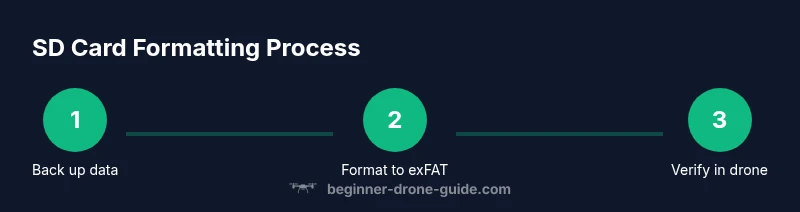
- Back up data before formatting
- Format to exFAT for DJI compatibility
- Verify the card in the drone after formatting
- Test recording with a short flight or sample files
- Keep spare cards and label storage clearly