Why Is My Drone Not Connecting to My Phone? Troubleshooting Guide
Struggling to pair your drone with your phone? This step-by-step troubleshooting guide from Beginner Drone Guide covers common causes, fixes, and safe reconnect tips for beginners.


Start with the easiest fixes: ensure the drone and phone are within range, restart both devices, and relaunch the pairing mode in the app. If that doesn’t resolve it, update firmware on the drone and controller, reset the app permissions, and perform a fresh pairing as if new. If the problem persists, follow the diagnostic flow below for deeper checks and safety considerations.
Why connection problems between drone and phone happen
The most common reasons a drone won't connect to your phone come down to pairing mode, firmware, or app permissions. When you search 'why is my drone not connecting to my phone', you’ll see many questions from beginners who assume hardware failure, but the reality is usually simpler: either the drone or the phone is not ready to pair. According to Beginner Drone Guide, most issues start with a missed step in setup: the drone isn’t in pairing mode, the app isn’t allowed to use Bluetooth or Wi‑Fi, or the firmware is out of date. Start by confirming you’re following the official pairing steps for your model, and that your phone’s Bluetooth and Wi‑Fi are both enabled, not restricted by airplane mode, and not connected to another device. Make sure you’re using the latest version of the drone app and that any permissions the app requests (location, storage, notification) are granted. If you can see the drone in your list but cannot initiate a reliable connection, pause and recheck the model number and your controller pairing method. With calm, methodical checks, many users reconnect in minutes rather than hours.
Safety and prerequisites before troubleshooting
Before you start, ensure the drone is on a stable surface and you’re in a safe area away from people, pets, and electronics that could interfere. Check that the drone’s battery is charged, the propellers are secured, and you aren’t in an environment with high electromagnetic interference. Disable any VR or wireless accessories that might steal attention from the pairing screen. Have the user manual handy to verify the exact pairing steps for their model. If the drone’s status LED indicates pairing mode, proceed with the phone connection. If not, enable pairing mode as described in the manual. Always follow local regulations about drones and keep the controller powered during the process. This groundwork reduces risk and speeds up troubleshooting.
Diagnostic flow: from symptom to solution
If your drone won’t connect to the phone, start with the symptom: no pairing indicator in the app. From there, consider causes: firmware mismatch, permissions or Bluetooth/Wi‑Fi issues, or incorrect device selection in the app. For each cause, test a fix: update firmware, reset app permissions, or re-pair. If the drone appears in the app but won’t connect, verify the device is the correct model and that the controller is in pairing mode. Move to a lower-interference space, restart devices, and retry pairing. If none of these steps work, escalate to professional support and consult the manufacturer’s troubleshooting guide.
Step-by-step fixes for the most common culprit
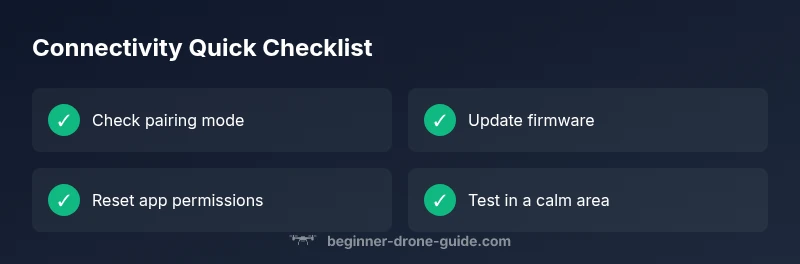
- Check pairing mode and ensure the drone is ready to pair. Ensure the controller is powered and in pairing mode, then open the app and start pairing. Tip: keep devices close, but not touching.
- Update firmware on drone and controller. Reboot the devices after the update and try again. Tip: back up any important settings.
- Reset app permissions for the drone app (location, storage, Bluetooth). Then relaunch the app and attempt pairing anew. Tip: grant permissions one by one to observe effects.
- Reinstall the drone app if issues persist. Uninstall, reboot phone, reinstall, and re-run pairing. Tip: ensure you’re using the official app from the manufacturer.
- Factory reset as a last resort (only if allowed by the manual). This will erase custom settings; back up if possible. Tip: re-pair with fresh settings.
- If still unresolved, test with another phone or tablet to isolate device-specific issues. Tip: ensure the other device has the same app version.
Prevention tips for future connections
- Regularly update both the drone firmware and the companion app to stay compatible with your phone’s OS.
- Review app permissions before each new flight season; disable anything unnecessary that could block pairing.
- Keep a simple pairing log: model name, app version, firmware version, date of last pairing.
- Test in a low-interference area after firmware or OS updates, and avoid crowded Wi‑Fi environments during initial pairing.
- Store your devices in a cool, dry place to prevent battery or sensor drift that can affect radio performance.
Steps
Estimated time: 20-30 minutes
- 1
Check pairing mode
Verify that the drone is in pairing mode and the controller is powered. Open the app and initiate pairing with the correct model selected. This is the most common missed step.
Tip: Keep the drone close to the phone during initial pairing to avoid signal loss. - 2
Update firmware
If updates are available for the drone or controller, install them. After reboot, retry the pairing process.
Tip: Back up essential settings if your model allows it. - 3
Reset app permissions
In your phone settings, reset or grant necessary permissions (location, storage, Bluetooth) for the drone app and retry pairing.
Tip: Grant permissions one by one to identify any blockers. - 4
Reinstall the app
Uninstall the drone app, reboot the phone, reinstall, and perform pairing again from scratch.
Tip: Use the official app from the manufacturer. - 5
Factory reset (last resort)
If allowed by the manual, perform a factory reset on the drone. This will erase saved configurations, so only proceed if documentation permits.
Tip: Note which settings you re-create after reset. - 6
Test with another device
Try pairing with a different phone/tablet to determine if the issue is device-specific.
Tip: If the other device works, compare app versions and OS compatibility.
Diagnosis: Drone won't connect to phone via app
Possible Causes
- highOutdated firmware on drone or controller
- highPhone Bluetooth/Wi-Fi issues or permissions
- mediumApp pairing mode not active or incorrect device selected
- lowInterference from other devices or distance too far
- lowIncorrect model selection in the app
Fixes
- easyUpdate drone and controller firmware to latest version
- easyReset Bluetooth/Wi‑Fi permissions for the app and re-run pairing
- easyRestart both devices and perform a fresh pairing as if new
- easyMove to an area with less interference and retry pairing
Frequently Asked Questions
Why won't my drone connect to my phone after a firmware update?
Firmware updates can reset pairing settings or change required permissions. Re-check pairing mode, re-authorize app permissions, and retry pairing after both the drone and controller reboot. If problems persist, consult the manufacturer’s troubleshooting guide.
Firmware updates can reset pairing; recheck pairing mode and permissions, then retry. If needed, consult the manufacturer’s guide.
Is Bluetooth the main culprit in drone-phone connections?
Bluetooth is often involved in initial pairing, but many drones rely on Wi‑Fi or proprietary radios. Check both Bluetooth and Wi‑Fi settings, ensure the app has location permissions, and verify the correct device is selected in the app.
Bluetooth or Wi-Fi can both be involved; check permissions and the correct device in the app.
Does distance affect pairing, and how close should I be?
Proximity matters for reliable discovery. Keep the drone and phone within a few feet during initial pairing, then gradually increase distance to test stability.
Keep them close during pairing, then test at usual flying distances.
What should I do if the drone appears in the app but won’t pair?
If the drone shows up but won’t pair, try restarting the app and both devices, reselecting the device in the app, and ensuring the drone is still in pairing mode. If needed, reinitiate pairing from scratch.
If it shows but won’t pair, restart and reinitiate pairing from scratch.
Would using a different phone help troubleshoot?
Testing with another phone or tablet can help identify whether the issue is device-specific. If the other device pairs, compare OS versions and app versions to identify incompatibilities.
Trying another device can reveal if the issue is with your phone or the drone.
Do I need to reset to factory settings to fix connectivity?
A factory reset is usually not required and should be a last resort per the manual. It erases saved settings, so back up if possible and follow official steps.
Factory resets are a last resort and erase settings; use them only if the manual allows.
Watch Video
Quick Summary
- Verify pairing mode and permissions first
- Keep firmware and app up to date
- Do a fresh pairing after each reset
- If unresolved, test with another device to isolate the issue