How to Make a Drone Come Back: A Beginner's Guide to Return-to-Home
Learn practical steps to make your drone return safely using GPS-based Return-to-Home, proper home point setup, and safety checks. A beginner-friendly guide for confident, safer flights in 2026.


Using Return-to-Home (RTH) lets a drone autonomously fly back to its home point when signal is lost or a button is pressed. To make this work, enable GPS-based RTH in the app, confirm your home point is current, and ensure the drone has a clear flight path with sufficient battery. Always stay within visual line of sight and monitor obstacles during the return.
Understanding Return-to-Home (RTH) and Why It Matters
According to Beginner Drone Guide, Return-to-Home (RTH) is a safety feature that automatically returns the drone to its takeoff point when GPS is available or when the control link is lost. This capability dramatically reduces the risk of a drone getting stranded or lost, especially for new pilots who may lose visual contact or encounter interference. In practice, RTH relies on several inputs: a reliable GPS lock, a known takeoff point, and an appropriate altitude to clear obstacles. While RTH is powerful, it is not foolproof: wind, changing terrain, or magnetometer interference can skew the drone's perception of home. This section will explain the core mechanics, common misperceptions, and how to set up RTH correctly before every flight.
Prerequisites: What you must check before enabling RTH
Before enabling Return-to-Home, you must confirm several critical prerequisites. Ensure the drone has a strong GPS lock, ideally with multiple satellites detected. Calibrate the compass in a wide-open area away from metal objects to prevent drift. Verify the home point is accurate by taking off from the intended location or by setting a fixed home point in the app. Check battery levels on both the drone and the controller; a failed return due to low power is common. Update firmware to the latest version, as manufacturers address RTH reliability and obstacle avoidance in updates. Beginner Drone Guide analysis shows that even small miscalibrations can cause the drone to misjudge its home, especially in urban canyons or forested areas. Take a few seconds to run through this checklist before taking off.
Types of Return-to-Home: automatic vs manual triggers
There are two primary ways to initiate a safe return. Automatic RTH is triggered when the drone loses its link to the controller or when the battery drops below a predefined threshold. This mode typically follows the home point to a preselected altitude and returns along the shortest safe path. Manual RTH is initiated by the pilot via the app or controller, giving you direct control to adjust altitude or navigate around obstacles. In practice, many pilots use automatic RTH as a safety net, then switch to manual control if the return path looks risky. Understanding when to use each mode helps you stay in control while reducing risk.
Step-by-step setup: pre-flight for RTH
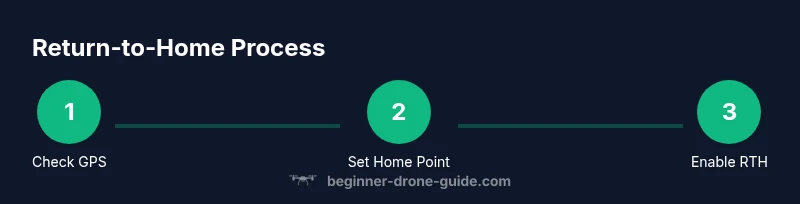
Before each flight, perform this setup: calibrate the compass in an open space; confirm GPS lock; set Home Point to takeoff location; ensure RTH is enabled in the app; choose a safe RTH altitude; verify the area is free of people and obstacles. Also ensure the battery is charged to a comfortable margin. This pre-flight routine ensures RTH triggers work reliably and gives you a predictable return path.
In-flight: triggering RTH safely
If you need to trigger RTH mid-flight, do so only when you have a clear, unobstructed view of the drone and the return path. Open the app or use the controller button to initiate RTH, then monitor the drone as it climbs to the pre-set altitude, surveys for obstacles, and returns along the established route. Avoid sudden maneuvers or gusty winds that can disrupt the drone's flight profile. If the drone encounters a problem, pause or cancel RTH and regain manual control.
Navigating the return path: obstacles and altitude
During the return, look for trees, power lines, buildings, and vehicles that could intersect the flight path. If wind conditions change, consider temporarily increasing the RTH altitude to clear potential obstacles, then gradually descend as you near the home point. Use visual line-of-sight and keep the drone within a safe range of the controller. Modern drones may adjust their path automatically for obstacles, but you should not rely on this entirely—be ready to take manual control.
Post-flight checks and data logs
After landing, review the flight log for any RTH incidents, such as GPS loss moments, unexpected altitude changes, or battery anomalies. This information helps you refine your pre-flight checklist and RTH settings for future flights. If you notice repeated issues, recalibrate sensors, update firmware, or consult the manufacturer’s guidance. Document any environmental factors that could influence environmental interference, like urban canyons or dense foliage.
Troubleshooting common RTH issues
If RTH fails, investigate GPS lock quality, compass calibration, and potential sources of interference. A poor GPS lock can cause the drone to misjudge home; recalibrate in an open area and re-run a test takeoff. Signal interference from nearby devices or power lines can disrupt the link to the controller; move to a clearer area or swap channels if possible. Also verify the home point hasn't shifted due to wind. Regular maintenance and firmware updates reduce the likelihood of RTH malfunctions.
Safety, ethics, and best practices
RTH is a safety net, not a substitute for situational awareness. Always fly with a clear line of sight, respect airspace rules, and avoid relying on RTH in crowded or restricted areas. Practice RTH in open spaces before attempting more challenging environments, and document your settings. The Beginner Drone Guide Team emphasizes that responsible pilots maintain control and monitor the drone’s return path at all times, ready to take manual action if needed.
Tools & Materials
- Drone with GPS and Return-to-Home capability(Ensure RTH is enabled in the firmware/settings)
- Fully charged batteries (drone and controller)(Carry a spare battery if flying for extended periods)
- Smartphone or tablet with the drone app installed(Test device connected to the controller before flight)
- Calibrated compass in an open area(Avoid metal objects and high magnetism during calibration)
- Spare propellers(Useful for quick in-field replacements)
- USB-C/Lightning charging cable(Keep handy for firmware updates or data transfer)
- Note-taking method to log Home Point(Helps verify Point accuracy across flights)
Steps
Estimated time: 20-35 minutes
- 1
Verify GPS lock and firmware
Power on the drone and controller, then check that a solid GPS lock is shown on the screen. Confirm the firmware is up to date before flight. A weak GPS lock can make RTH unreliable, so address any satellite warnings first.
Tip: If satellites are low, wait for a few minutes in an open area to improve lock. - 2
Set Home Point accurately
Takeoff from the intended location or manually set the Home Point in the app. Confirm coordinates match your takeoff point and note any wind drift that could shift the point before you begin.
Tip: When in doubt, re-center the home point after a brief hover at takeoff height. - 3
Enable RTH and choose altitude
Turn on Return-to-Home in the app and select a safe RTH altitude that clears nearby obstacles. Higher altitude reduces collision risk but may require more power.
Tip: Test RTH altitude in a low-risk area to ensure it reliably clears obstacles. - 4
Perform a pre-flight battery check
Ensure battery levels are sufficient for the planned flight and the return. Low battery is a common cause of incomplete RTH, so budget extra margin.
Tip: Aim for at least 30-40% battery reserve beyond estimated flight time and return. - 5
Plan your return path
Visualize the path back and look for potential hazards like trees, wires, or structures. If you know the route is risky, adjust altitude or switch to manual control early.
Tip: Keep the drone within line of sight during the entire return. - 6
Trigger RTH when needed
If you lose signal or broadcast a fault, initiate RTH via the app or controller. Monitor the drone as it ascends to the preset height and proceeds home.
Tip: Avoid making sudden direction changes during the return. - 7
Landing and post-flight check
After landing, review the flight log to inspect GPS, wind, and battery data. Note any RTH anomalies and adjust future flights accordingly.
Tip: Document any issues and recalibrate if you observe recurring problems.
Frequently Asked Questions
What is Return-to-Home (RTH) on a drone?
RTH is a safety feature that automatically guides the drone back to a designated home point when signal is lost or battery is low. It relies on GPS data, reliable control link, and a safe path to return.
RTH automatically brings the drone back to its home point when the connection is lost or the battery is low.
How is the home point determined?
The home point is usually the takeoff location. Some drones allow you to set a fixed home point in the app, which remains constant unless you update it before flight.
Home point is typically the takeoff point or a fixed point you set in the app.
What can cause RTH to fail?
Poor GPS lock, magnetic interference, or severe signal disruption can cause RTH to misjudge home or divert the return path. Wind and obstacles can also complicate a safe return.
RTH can fail due to weak GPS, interference, or heavy obstacles along the way.
Can I override RTH if obstacles are present?
Yes. You can switch to manual control during return until you reach a point where you can re-engage RTH or safely land. Stay ready to intervene at any moment.
You can override RTH with manual control if obstacles appear.
Is RTH safe indoors?
RTH requires GPS and open space to work reliably. Indoors, obstacles and weak GPS can cause wild returns or crashes. Use caution and stay out of enclosed spaces when using RTH.
RTH is risky indoors due to limited GPS and many obstacles.
What should I do if RTH triggers unexpectedly?
Pause, regain manual control, and assess the environment. If necessary, cancel RTH and try again after reheating a clear path. Check for sensor issues if this occurs repeatedly.
If RTH triggers unexpectedly, take manual control and assess the environment.
Watch Video
Quick Summary
- Enable GPS-based RTH before each flight.
- Verify home point accuracy and stay in sight during return.
- Calibrate compass and update firmware regularly.
- Plan safe return altitude and anticipate obstacles.
- Review flight logs to refine RTH settings.