How to Tell If Your DJI Drone Is Fully Charged: Quick Guide
Learn how to tell when a DJI drone battery is fully charged with LED indicators, app checks, and best safety practices. A beginner-friendly guide by Beginner Drone Guide.


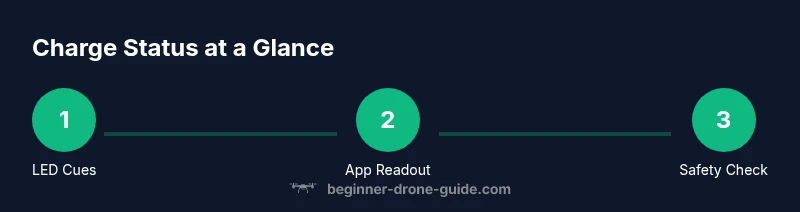
To know if your DJI drone is fully charged, start with the battery indicators on the charger and battery, then verify the percentage in the DJI Fly app, and finally perform a quick voltage check if you have a multimeter. Ensure the battery reaches a solid full indication before use and unplug to avoid overcharging.
Understanding Battery Fundamentals
A DJI drone’s ability to fly depends on the battery’s state of charge. Fully charged means the cell pack has reached its intended maximum capacity as rated by the manufacturer and can deliver the drone’s expected flight time. For beginners, the simplest way to confirm readiness is to check multiple indicators that line up: the LED status on the battery, the charger, and the live percentage shown in the flight app. This is not just about a single number; it’s about a consistent signal across indicators. According to Beginner Drone Guide, grasping these basics before your first flights helps you avoid unsafe starts and preserve battery health over time. In practice, you should plan charging around your typical flight schedule, using reliable chargers and keeping batteries within the recommended temperature range to maintain peak effectiveness.
As you learn how to know if dji drone is fully charged, remember that different battery packs may display slightly different cues. Some models use color changes on LEDs, while others rely on the app to reflect a precise percentage. Consistency of signals across the battery, charger, and app is your most reliable guide to a true full charge.
How DJI Batteries Indicate Charge Levels
DJI battery packs typically use a set of LED indicators that communicate charge status at a glance. When charging, you may see one or more red LEDs; as charging progresses, these LEDs light up in sequence and usually glow green or white when the battery approaches full capacity. The number of lit segments often corresponds to approximate charge levels (for example, 0% to 25%, 26% to 50%, and so on). A fully charged battery will show all LEDs lit in the final color (green/white) or indicate full readiness through a dedicated status, depending on the model. For beginners, a quick check is to confirm that the LED pattern matches the model’s charging guide in the manual or the official DJI app prompts. Based on Beginner Drone Guide analysis shows the most straightforward method is a combined read from LED indicators and the app, which minimizes guesswork and ensures you don’t fly with an undercharged battery.
Using the DJI Fly App for Charge Status
The DJI Fly app provides a practical, centralized way to monitor battery health and charge status. Connect the controller and drone as you normally would when preparing for a flight, then navigate to the Battery screen. Here you’ll see the current charge percentage, the health of each cell (where applicable), and whether the battery is charging or full. Some models also display a “Fully Charged” badge once the current charge reaches 100%. For beginner pilots, this app readout is often the most reliable confirmation to pair with the physical indicators on the battery and charger. If you notice a discrepancy between the app and the LED, treat the app readout as the primary source and investigate the other cues by re-plugging the charger or re-seating the battery.
Visual and Physical Indicators on Chargers and Batteries
Charge indicators aren’t limited to smartphone apps. The battery and charger themselves carry simple visual cues that help you confirm a full charge without powering on the drone. Look for solid green LEDs on the battery or charger once charging is complete, and avoid leaving the battery plugged in after the indicator turns green. Some DJI models feature a button on the battery; pressing it can show a quick charge level readout via a row of LEDs. Always ensure you are using an official DJI charger or a certified charger compatible with your model. These cues work together with the app status to give you a safe, clear signal that the battery is ready for flight.
Step-by-Step Quick Check Before Flight
This section provides a practical, repeatable checklist you can perform before each flight to confirm the battery is fully charged and safe to use. First, remove the battery from the drone, then place it on the charger and connect it to power. Watch the LED indicators on the battery and charger during charging. Next, open the DJI Fly app and verify the battery percentage is 100% and that there are no battery warnings. Finally, allow the battery to cool briefly if it was recently charged, and re-insert it into the drone once it’s at a safe operating temperature. By following these steps, you’ll be confident that your drone is ready to fly and ready to perform at peak performance.
Safety Considerations and Best Practices
Charging safety is essential for drone operation, battery longevity, and personal safety. Always use the original DJI charger or a certified alternative designed for your battery chemistry. Avoid charging in places with high heat, direct sunlight, or near flammable materials. Do not leave batteries charging unattended for long periods, and never charge damaged or swollen batteries. Store charged batteries at recommended temperatures and moisture levels to preserve health. Keeping a stable charging environment reduces the risk of thermal runaway and helps maintain consistent flight performance across sessions.
Common Mistakes That Signal a Battery Has Not Recovered
Many beginners assume a 100% LED or app readout guarantees long-term reliability. In reality, indicators can mislead if the battery is aging, swollen, or improperly stored. Common mistakes include delaying charging until the last minute, unplugging too soon, relying solely on a single indicator, or using a third-party charger without verification. Such practices can shorten battery life or create safety risks. Regularly inspecting batteries for signs of wear, swelling, or unusual heat during charging is a good habit. Remember that batteries should be replaced as needed to maintain performance and safety standards.
Troubleshooting Unclear Readouts
If the LED indicators or app status don’t align, start with the simplest checks: reconnect the charger, reseat the battery, and restart the app. If discrepancies persist, verify the charger’s power supply and ensure you are using compatible cables. In some cases, a firmware update for the battery controller or drone can fix readout inconsistencies. If you continue to see inconsistent readings, contact DJI support for guidance on model-specific indicators and safe practices. These steps help ensure you are not misled by a stubborn readout and that your flight is safe.
Real-World Scenarios and Model Variations
DJI models vary in how they display charge status. For example, newer models may rely more on the Fly app, while older ones lean more on on-device LEDs. Battery chemistry and form factor differ across Mavic, Air, and Mini series, which means charging times, LED patterns, and app statuses can vary slightly. The core principle remains the same: confirm a full charge through a combination of charger indicators, battery LEDs, and app status. When in doubt, consult the model-specific manual and use the DJI Fly app as a primary reference for charge status signals.
Tools & Materials
- DJI drone battery(Ensure model compatibility and health before charging)
- Official DJI charger(Use original or certified charger to prevent overvoltage/overheating)
- USB-C cable(Optional for certain charging docks or fast-charge setups)
Steps
Estimated time: 45-60 minutes
- 1
Power down and remove the battery
Turn off the drone and controller, then carefully remove the battery from the drone. This isolation prevents short-circuits and allows you to inspect the pack safely. Handle the battery by its edges and avoid punctures or bending.
Tip: Place the battery on a non-flammable, flat surface during inspection. - 2
Connect the battery to the charger
Attach the battery to the official charger or dock. Ensure the contacts align properly and the charger is plugged into a stable power source. A secure connection is critical for accurate charging status readings.
Tip: If the battery is swollen or warm, stop and inspect for damage before charging. - 3
Observe charging indicators
Watch the LEDs on the battery and charger as charging progresses. Many batteries show red during charging and green or white when complete. Keep an eye on the pattern and listen for any beeps from the charger indicating a fault.
Tip: Record the observed pattern for future reference in your flight log. - 4
Check in the DJI Fly app
Open the app and navigate to the Battery screen to confirm 100% charge. The app may also report battery health and temperature. Use this as your primary confirmation when the physical indicators are ambiguous.
Tip: If the app shows a warning, do not fly until resolved. - 5
Re-seat and re-test before flight
Unplug, re-seat the battery, and re-check both app and LED indicators. This extra check helps catch contact issues or a charger stop-start glitch that could misreport charge levels.
Tip: Always wait for the battery to cool slightly after charging before re-insertion.
Frequently Asked Questions
How long does it take to fully charge a DJI drone battery?
Charging times vary by model and charger. Always refer to the battery specifications and use the official charger for the most accurate estimates.
Charging times vary by model and charger; check the battery specs for the approximate duration.
Can I use a third-party charger for DJI batteries?
Using third-party chargers is not recommended unless the charger is explicitly certified for your DJI battery. Official or certified chargers ensure proper voltage and safety protections.
Only use certified chargers compatible with your DJI battery.
Is it safe to charge the battery inside the drone?
No. DJI batteries are designed to be charged with an external charger or dock. Charging inside the drone is not supported and could be unsafe.
Charge with the official charger, not inside the drone.
What indicators show a full charge?
A full charge is indicated when the battery LEDs show solid green or white (depending on model) and the app reports 100%. If discrepancies appear, rely on the app data and re-check indicators.
Look for solid LEDs and 100% in the app.
What should I do if the LED stays flashing red while charging?
Flashing red typically signals a charging issue or fault. Stop charging, unplug, inspect connections, and try again with a known-good charger. If it persists, contact DJI support.
If the LED stays red, stop charging and check connections or contact support.
Watch Video
Quick Summary
- Verify charge with both indicators and app status
- Always use the original charger for safety
- Keep batteries in safe temperatures to preserve health
- Unplug when full and avoid overcharging
- The Beginner Drone Guide team recommends following official safety guidelines for charging