How to Fly a Drone Without a Remote: A Practical Guide
Learn how to operate a drone without the physical remote using mobile-app control, safety checks, and legal guidelines for beginners in 2026.


You can control many drones without a physical remote by using the drone's official mobile app or built-in autopilot features. You'll need a compatible drone, a smartphone or tablet, and legal clearance for your flight area. This guide explains safe app-based control steps and common safety precautions for beginners and hobbyists alike.
Why flying without a remote matters
In many situations, a traditional handheld controller isn't convenient or possible. You might be teaching a friend, flying a drone in a tight space, or simply trying to reduce fatigue during long sessions. Learning how to fly drone without remote opens up safer, more accessible options for beginners and hobbyists. The core idea is to use the drone's built-in receive-and-control features via a smartphone or a connected device. With app-based control, you can access flight planning, altitude limits, and automated takeoff or landing, which reduces the cognitive load for new pilots. According to Beginner Drone Guide, the majority of consumer drones released in the last five years offer official mobile apps that can substitute for a physical controller for many routine tasks. This doesn't replace the need for a manual override or a remote in more complex or remote missions, but it can be a valuable stepping stone toward confident piloting. If you’re curious about how this works, this guide will walk you through safe usage, legal considerations, and practical steps to get up in the air using only your phone or tablet. Begin with a mindset of safety, legality, and patient practice as you explore app-based flight options.
Beginner Drone Guide emphasizes that practicing with app-based control helps new pilots gain intuition about throttle, speed, and positional awareness without the intimidation of a physical controller. This approach aligns with real-world workflows, especially for beginners who are building confidence before attempting remote operations. Remember, the goal is to learn responsibility and control, not to rush into advanced maneuvers. This article integrates practical steps with safety-first guidance to ensure you can progress safely as you learn how to fly drone without remote.
Prerequisites: legality, safety, and gear
Before you attempt to fly without a remote, verify local rules, including drone registration, maximum altitude, and line-of-sight requirements. In many jurisdictions, flying with a mobile app is permissible only for certain classes of drones or flight modes, and you may still need an appropriate license. Prioritize safety: choose a clear, open space away from people, property, and air traffic, and enable geofencing and return-to-home features if available. Gear-wise, ensure your smartphone or tablet is charged, has the latest version of the drone's official app, and is securely mounted to avoid drops. Update the drone's firmware and check flight-safety settings such as obstacle avoidance, GPS lock, and compass calibration. In practice, many pilots find that a well-prepared workflow reduces risk and helps you maintain control even without a physical remote. Based on Beginner Drone Guide analysis, starting with a test flight in a safe area is essential to build familiarity with app-based controls before attempting more ambitious missions. The legal landscape varies by location, so always check your local aviation authority's guidelines before taking to the sky.
Choosing the best method for your drone
Not all drones support full app-based control, but many modern models offer at least partial control via a manufacturer app, which can substitute for the remote during basic operations. If your drone supports waypoint missions, orbit modes, or follow-me features, you can complement manual control with automated flight paths. For beginners, start with smartphone control for takeoff, hover, and basic movement, then explore limited automated features as you gain comfort. If your drone lacks robust app control, consider upgrading to a model that provides a reliable mobile interface and official tutorials. Always verify that the app version is current and that the drone’s firmware supports the features you need. By choosing a method that aligns with your local rules and safety comfort level, you’ll be able to progress from novice to confident operator without the traditional remote.
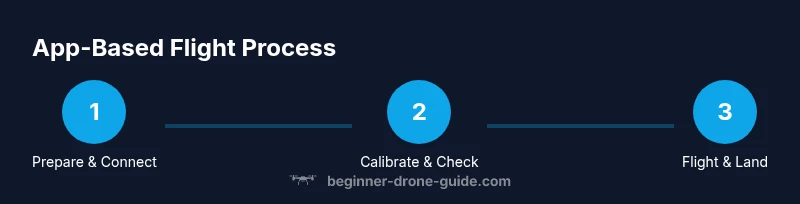
Step-by-step setup: connect your device and enable control
- Install and update the official drone app on your smartphone or tablet. Ensure you have the latest firmware for both the drone and the app to prevent connectivity glitches. Pro tip: perform updates in a calm environment to avoid interruptions.
- Power on the drone and power on your mobile device. Open the app and connect over the recommended link (Bluetooth, Wi‑Fi, or RF bridge). If prompted, grant seat-of-the-pants permissions for location services and safety features.
- Calibrate essential sensors within the app (compass, IMU). This ensures accurate altitude readings and directional stability. Why: miscalibrated sensors can cause drift or erratic flight behavior.
- Review geofencing and safety settings in the app. Set the maximum altitude and establish a pre-defined safe boundary to reduce risk during initial flights. Pro tip: enable automatic return-to-home for emergency situations.
- Run a short ground test (zero-takeoff) to verify that the control inputs on the screen map to the drone’s movements. If latency or jitter is observed, reconnect or restart the app and drone.
- Attach a protective propeller guard if you’re practicing in a confined space. This minimizes the chance of prop strike damage during initial flights. Pro tip: practice in an open, obstacle-free area before entering tighter environments.
- Confirm that you have a clear line of sight to the drone at all times. Maintain situational awareness and be ready to intervene if the app signals a warning or a fault.
- Prepare to take off using the app’s takeoff sequence. Observe stable hover, then gradually test forward, backward, and lateral movements. Pro tip: keep your fingers near the on-screen controls to react quickly in case of unexpected drift.
Total estimated setup time: 15–25 minutes depending on device compatibility and firmware updates.
Calibrations and preflight checks
Effective app-based flying starts with precise calibrations and a thorough preflight. Begin by performing compass calibration in a wide-open space away from metal structures and large magnetic sources. Next, perform IMU calibration if the app requires it, and verify GPS lock reaches a solid 6–8 satellites for reliable positioning. Check battery health for both drone and device; ensure cautions about power consumption are understood. Inspect propellers for chips or cracks and verify none are loose. Confirm that the protective guards are secure if you plan a low-altitude flight. Finally, review the flight plan in the app, including speed limits, altitude caps, and return-to-home behavior. The aim is to prevent surprises mid-flight and keep your aircraft within safe operating parameters. Following these checks helps you learn how to fly drone without remote more confidently and safely.
In-flight operation: takeoff, navigation via app
With the app connected, initiate a controlled takeoff sequence and allow the drone to achieve a stable hover at a moderate altitude. Use simple on-screen sticks or virtual joysticks to practice gentle climbs, descents, and lateral movements. Test turning, altitude hold, and GPS-assisted stabilization before attempting any automated maneuvers. If your drone supports waypoint missions, start with a short, pre-programmed path to practice accuracy and battery management. Monitor the battery, wind conditions, and satellite signal quality throughout the flight. Keep the drone within the app’s telemetry display, paying attention to speed, altitude, and distance from yourself. If something feels off, land immediately using the digital return-to-home function or manual landing sequence provided by the app. Safety remains the priority as you refine app-based control skills.
Emergency procedures and safe landing without remote
If the app connection drops, stay calm and begin a controlled descent using the on-screen controls. If the drone begins drifting due to wind or sensor drift, reduce altitude slowly and reacquire level flight before attempting to land. In any emergency, prioritize a safe, well-lit landing area and avoid overconfident maneuvers that raise risk. If you must abort the mission, initiate the return-to-home (RTH) feature and watch the drone's path carefully, ensuring it has a safe clearance path. After landing, power down all devices, then re-check firmware and app updates before attempting another flight. This disciplined approach minimizes risk and protects both your equipment and bystanders during app-based flight.
Real-world use cases: training, photography, remote locations
App-based flight shines in beginner training, aerial photography in open spaces, and scouting remote areas where connecting to a traditional remote might be impractical. For photographers, the app often provides timed intervals, waypoints, and automated shutter control to capture consistent shots while you focus on framing. In training scenarios, using the app reduces fatigue during longer sessions and supports a measured learning curve for throttle control and spatial awareness. When operating in remote or restricted locations, ensure extra caution with regulatory restrictions, local airspace rules, and any permissions required for flight. The app becomes a valuable ally for getting comfortable with flight dynamics before moving to more complex control methods or using a physical remote.
Troubleshooting common issues and limitations
Connectivity hiccups can interrupt your flight. If the app loses connection, perform a quick reconnect sequence, verify Bluetooth/Wi‑Fi status, and ensure you are within the recommended range. If telemetry drifts or the drone lags behind input, check for firmware updates, restart both devices, and test in a safe, controlled environment. Some drones require the physical remote for certain advanced maneuvers or camera controls; in those cases, app-based control will be limited. Battery life can also limit sessions; plan for shorter flight times and carry spare batteries. Finally, remember that regulatory limitations and safety rules apply regardless of the control method, so always fly within permitted areas and keep a responsible margin around people and property.
Tools & Materials
- Smartphone or tablet with compatible drone app(Ensure it supports Bluetooth/Wi‑Fi connectivity to the drone and has sufficient battery life.)
- Drone with official app-based control(Confirm the drone model supports app-based control and firmware compatibility with the app.)
- Fully charged batteries for drone and device(Carry at least one spare battery and a charger within reach.)
- Spare propellers and basic tool kit(Useful for quick replacements during practice sessions.)
- Propeller guards(Helpful when practicing in confined spaces or with new pilots.)
- Firmware and app updates(Check for updates before each practice session to ensure compatibility and safety features.)
Steps
Estimated time: 25-40 minutes
- 1
Prepare device and drone
Install and update the official drone app on your smartphone or tablet, then ensure the drone firmware is current. This guarantees the app can control core flight features and reduces connectivity issues.
Tip: Check that the device has a stable internet connection for initial setup. - 2
Power on and connect
Turn on both the drone and your mobile device, then connect through the app using the recommended link (Bluetooth or Wi‑Fi). Grant location access if prompted for optimal telemetry.
Tip: If you can't connect, restart the app and/or reboot the drone. - 3
Calibrate sensors
Perform compass and IMU calibration as required by the app. Proper calibration improves GPS accuracy and flight stability.
Tip: Calibrate away from metal surfaces and magnetic interference. - 4
Set safety parameters
Configure geofence limits, maximum altitude, and return-to-home settings in the app before takeoff.
Tip: Keep RTH enabled to automatically land if signal is lost. - 5
Perform a ground test
Do a brief hover test on the ground to verify the screen controls map correctly to the drone's movements.
Tip: If the drone drifts, pause and recalibrate before continuing. - 6
Practice in a safe area
Choose a wide, open space with minimal wind to practice basic moves: ascend, descend, forward, backward, and lateral translations.
Tip: Begin with slow, small movements to build confidence. - 7
Advance gradually
Once you’re comfortable, try simple automated features (waypoints or orbit) within the app, ensuring you monitor closely.
Tip: Never push independent automation beyond your comfort zone in early sessions. - 8
Land safely
Use the app's landing sequence or manual controls to descend and touch down smoothly in a clear area.
Tip: Always keep a visual on the drone until it lands completely.
Frequently Asked Questions
Can I fly a drone without a remote?
Yes, if your drone supports app-based control or autopilot features. Check the manufacturer's app and local regulations before flight.
Yes, you can fly without a remote if your drone supports app-based control. Always check the manufacturer’s guidelines and local laws.
What equipment do I need to fly without a remote?
A compatible drone, a smartphone or tablet with the official app, and charged batteries. Ensure firmware and app are up to date.
You'll need a compatible drone, a phone or tablet with the app, and charged batteries. Keep everything updated.
Is app-based control legal everywhere?
Rules vary by country and region. Always consult your local aviation authority and follow registration and altitude limits where required.
Laws vary by location. Check with your local aviation authority and follow required registrations and limits.
What if the app connection fails during flight?
Land safely using the app's fail-safes or return-to-home feature if available, then troubleshoot connectivity before flying again.
If the app disconnects, land safely and troubleshoot connectivity before your next flight.
Which drones support app-based control?
Many consumer drones offer app-based control; verify model specifications and required firmware on the manufacturer’s site.
Most modern consumer drones support app control—check the model’s official docs for details.
Watch Video
Quick Summary
- Learn app-based control basics before relying on a traditional remote.
- Always perform calibration and safety checks prior to flight.
- Use geofence, altitude limits, and RTH for safer operations.
- Practice in open spaces and gradually introduce automation features.
- Follow local laws and manufacturer guidelines to stay compliant.