Hover x1 Drone: Mastering Stable Hover for Beginners
A practical, beginner-friendly guide to achieving and maintaining a steady hover with the hover x1 drone. Learn setup, safety, and real-world tips to fly smarter and stay confident.


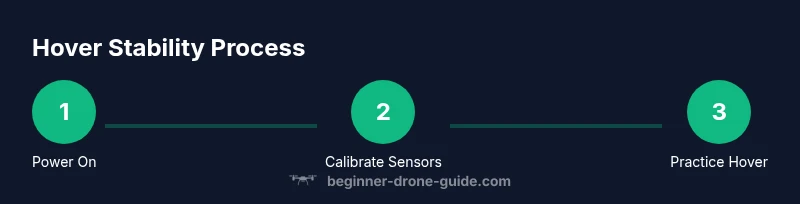
With the hover x1 drone, a stable hover starts with GPS lock, IMU calibration, and a known home point. Before lift-off, perform a firmware check and confirm your control sticks respond smoothly. In calm conditions, follow these steps to maintain altitude and position, then practice gentle corrections to counter drift and wind.
Understanding Hover Dynamics with the Hover x1 Drone
Hovering may seem simple, but achieving a stable hover relies on sensor fusion and control algorithms that continuously correct attitude and position. The hover x1 drone uses GPS when outdoors, a barometer for altitude, and an inertial measurement unit (IMU) to detect tilt and rotation. When you power up, the flight controller runs automatic checks to determine sensor health and align the frame with the horizon. If any sensor reports unusual data, the software may limit motion or refuse to arm. For beginners, verify stability before raising throttle, and choose a clear, level takeoff surface to avoid initial tilt. In calm outdoor conditions with a reliable GPS signal, you can expect to see a steady hover once the drone reaches its target altitude. Indoors or near tall structures, the drone relies more on the IMU and internal estimator to maintain position, which makes it more sensitive to drafts, vibrations, and radio interference. According to Beginner Drone Guide, a meticulous calibration habit pays off in precise altitude hold and better wind resistance.
This section lays the groundwork for stable hovering by explaining how the hover x1 integrates GPS, barometer, and IMU data to keep the drone steady in three axes. You’ll learn why calibration and a clean takeoff surface matter, especially when wind speed changes or nearby obstacles alter the air currents. Understanding these dynamics helps you predict how small stick inputs translate into movement, so you can plan corrections ahead of time rather than chasing drift after it starts.
Beginner Drone Guide emphasizes that consistent hover begins with a disciplined preflight routine and disciplined practice in varied environments. If you stick to a proven sequence, you’ll reduce surprises and build confidence over repeated sessions.
Setup Essentials Before You Lift Off
Before you even consider hovering, prepare the drone and your environment. Start with a full charge on both the drone battery and the controller. Ensure the hover x1 drone firmware is up to date and that the flight app on your smartphone or tablet is running the latest version. Check that propellers are secure, free of cracks, and balanced; replace any damaged blades. If you’ll fly indoors, consider propeller guards to reduce accidental contact and protect walls. Establish a known home point in the app so the drone can return if things go wrong. Pair the controller to the drone and verify that all control channels respond smoothly to your input. If you’re outdoors, assess wind conditions; even slight gusts can challenge your hover, so choose a sheltered area for initial practice. In all cases, perform a quick compass/IMU calibration according to the manufacturer’s instructions. According to Beginner Drone Guide, a careful setup reduces drift during the first hover and sets you up for safer progress.
The initial setup also includes verifying satellite connectivity if GPS is available. A weak GPS signal indoors will shift the hover dynamics toward the IMU-based estimator, which can be less stable. This is precisely why many beginners start with a low-altitude indoor hover in a spacious room before attempting outdoor GPS-powered hovering. When you’re ready to transition outside, confirm that GPS is locked and that the home point is saved accurately in the app. The goal of setup is to minimize variables that cause instability once you lift off.
Basic Hover Techniques for Beginners
A controlled hover comes from small, deliberate control inputs and a stable platform. Start by lifting off to a safe, low hover—about knee height or a few feet off the ground—then gradually reduce throttle to hold your chosen altitude. Use the pitch and roll sticks to maintain a smooth position; tiny, steady movements beat large, abrupt corrections. Practice yaw (rotational) control as a separate exercise to prevent unintended turning while maintaining your altitude. Keep your drone as close to level as possible; even slight tilts can move it laterally and create drift. Use gentle, planned inputs and hold each position for several seconds to assess stability before moving again. When the wind is calm, you’ll find it easier to maintain center position; introduce minor winds gradually that reflect real-world flying conditions. As Beginner Drone Guide notes, a consistent hover improves with repetition and slow, precise control actions rather than rapid fluctuations.
If you notice the drone drifting despite small inputs, pause, re-check GPS lock (outdoors), or re-calibrate sensors if needed. Small adjustments to the throttle curve in the app can help you fine-tune altitude hold so you don’t chase vertical drift as the wind changes. Remember, the goal is a steady, comfortable hover that you can repeat reliably in the same location and conditions.
Common Causes of Drift and Instability
Drift during hover is usually caused by a combination of environmental and equipment factors. Wind is the most obvious external cause; even a light breeze can push the drone off-center, especially if you’re not in a true hover yet. Internal factors like IMU bias, compass interference, or a miscalibrated barometer can also introduce subtle errors that manifest as sideways drift or altitude changes. Propeller balance and motor health matter as well—tiny imbalances magnify with speed, particularly near the edges of the propeller arc. Radio interference from nearby devices or cellular signals can further destabilize the control loop, causing slower responses or oscillations. To minimize drift, practice in a consistent location, ensure your sensors are calibrated, and verify that the GPS signal is stable before attempting a high hover. If drift persists, land and perform a fresh calibration after cleaning the sensors and inspecting the propellers for wear.
Understanding these causes helps you diagnose hover problems quickly. In outdoor environments, you’ll often find that slight corrections with the throttle and cyclic controls counterbalance wind gusts. If the air gets choppy, lower your hover altitude and re-check stability in a more sheltered area. The aim is to build a robust mental model of how the drone reacts to different inputs and conditions, so you can anticipate drift rather than react to it.
Safety First: Pre-Flight, In-Flight, and Post-Flight
Safety is the backbone of any hover exercise. Before takeoff, clear the area of people, pets, and fragile objects. Confirm the battery levels are above minimum thresholds and that you have a safe landing area with ample room for deceleration. During flight, keep your hands and face clear of the propellers, and avoid rapid, extreme control inputs that could overstress the motors. Always maintain a line of sight and be prepared to disengage the flight if anything feels abnormal—sticky controls, strange motor noises, or unexpected tilting are signals to land. After landing, power everything down smoothly, inspect the propellers for nicks or cracks, and record any anomalies in your flight logs. To minimize risk, practice in open spaces with stable ground and use prop guards for indoor practice. According to Beginner Drone Guide, building a habit of checking safety elements after every hover session reduces the likelihood of accidents and helps you fly with confidence.
Real-World Use Cases for Hover Skills
Hovering reliably is foundational for many drone tasks. In photography and videography, a stable hover allows you to frame shots and capture smooth, cinematic footage. For inspections—such as looking at rooftops, bridges, or solar panels—a precise hover enables close-up details without constant repositioning. In education and research contexts, hover stability supports data collection and demonstrations. Even basic mapping and surveying rely on consistent altitude and position during grid passes. As you grow more comfortable with hover, you’ll find opportunities to apply these skills to everyday hobbies and small projects. Beginner Drone Guide notes that the value of stable hovering extends beyond pilots—it empowers safer operations, more accurate data collection, and higher-quality content across various real-world applications.
Troubleshooting Quick Fixes
If your hover suddenly becomes unstable, first check for a fresh battery and ensure the drone isn’t low on power. A degraded battery can affect motor response and altitude hold. Next, verify the GPS signal outdoors; a weak or fluctuating signal is a common cause of drift. If GPS is unreliable, switch to a non-GPS hover mode if available, or revert to a cautious indoor hover with IMU-based hold. Calibrate sensors again if you notice odd behavior, and inspect the propellers for bending or damage—even a tiny warp can lead to wobble during hover. If you suspect interference, move to a different location away from power lines or wireless devices. Logging the incident in your flight records helps you track recurring issues and share data with support if needed.
Maintenance to Keep Hover Performance Sharp
Regular maintenance keeps hover performance consistent over time. Clean the airframe and sensor ports after each session, removing dust and debris that can affect accuracy. Inspect propellers for chips or cracks and replace damaged blades promptly. Check motor screws and mounting points to ensure nothing is loose, which could create vibrations that degrade hover stability. Calibrate the compass and IMU as part of your preflight routine, especially after firmware updates or transport. Store the drone in a temperature-stable environment to prevent battery degradation and sensor drift. Finally, review flight logs periodically to detect patterns of drift or instability that may indicate aging hardware or the need for professional servicing. Following these practices helps the hover x1 maintain peak stability over time.
Advanced Tips to Improve Stability
Advanced pilots can improve stability by mastering subtle input timing and throttle shaping. Practice keeping a constant hover altitude with small, deliberate throttle corrections rather than large, abrupt changes. Fine-tune the control sensitivity in the flight app to reduce twitchiness on windy days. When approaching environmental boundaries, plan your hover path to minimize gust-induced crosswinds and anticipate the rotor wash created by nearby structures. If you frequently fly outdoors, consider enabling forward motion tests to evaluate how fast a hovering drone recovers from a wind gust. Remember that stability is a combination of hardware health, software configuration, and your piloting technique. The more you practice, the more consistent your hover becomes, even in modest wind conditions. Beginner Drone Guide encourages practicing in varied conditions gradually to build a robust skill set.
Verdict: Should You Upgrade or Seek Help?
For most beginners, continued practice with the hover x1 drone will yield steady, repeatable hover performance. If you experience persistent, unfixable instability after complete calibration, consider seeking an inspection from a professional or contacting the manufacturer’s support for a hardware check. Upgrading to a newer drone with improved sensors or a more advanced stabilization system can be beneficial if your projects demand higher altitude, faster response, or more robust wind resistance. The key is to maintain safe habits, keep firmware current, and log your flights to monitor progress over time. The Beginner Drone Guide team recommends sticking with a structured practice plan before deciding on an upgrade, ensuring you’ve maximized your current platform’s capabilities and your own piloting confidence.
Tools & Materials
- Hover x1 drone(The main device you will fly)
- Controller with charged battery(Power on with a responsive connection to the drone)
- Smartphone/tablet with flight app(Connect to drone for status, calibration, and logs)
- Spare batteries(For extended practice sessions and safety buffers)
- Prop guards (optional for indoors)(Adds safety and reduces prop damage in tight spaces)
- Calibrations tool (compass/IMU)(Follow manufacturer steps to calibrate sensors)
- Firmware update cable/USB(Keep firmware current to ensure stability)
Steps
Estimated time: 20-30 minutes
- 1
Power on and connect
Power on the drone and controller, then connect the flight app. Verify a stable link and that all indicators show healthy status before touching the controls.
Tip: If the app shows sensor errors, pause and re-check connections before arming. - 2
Check environment and safety
Survey the flying area for people, pets, and obstacles. Ensure the surface is level and clear of debris to prevent sudden tilts at takeoff.
Tip: Choose a wide, open space for your first hover attempts. - 3
Calibrate compass and IMU
Place the drone on a flat surface. Start compass and IMU calibration per the manual and wait for the successful confirmation tones or indicators.
Tip: Calibration can take a minute; don’t rush—avoid vibrations during the process. - 4
Update firmware (if available)
Check for firmware updates in the app. Install any updates to improve stability and sensor performance.
Tip: A fresh firmware often includes improved hover algorithms. - 5
Set home point and enable GPS
If outdoors, ensure GPS lock is acquired and set a precise home point. This enables reliable return-to-home and stable position hold.
Tip: Verify home point is visible on the map so you can return safely. - 6
Arm and perform a low hover
Arm the motors and lift to a low hover. Keep the throttle smooth and avoid aggressive inputs.
Tip: Remain attentive to wind and adjust altitude gradually. - 7
Establish altitude hold and center position
Fine-tune throttle to hold altitude and use small stick inputs to center the drone in the airspace.
Tip: Small inputs beat long, sweeping motions for stability. - 8
Practice drift corrections
Gently test yaw and position hold by drifting slightly and correcting back to center with measured inputs.
Tip: If drift is persistent, land and recheck sensors and calibration. - 9
Return to home and land
When done, initiate return-to-home if needed and perform a controlled landing. Power off after safe shutdown.
Tip: Always ensure landing area is clear before touching down.
Frequently Asked Questions
What is the best mode for beginners to hover?
For beginners, use GPS hover or altitude hold when available. These modes automatically stabilize attitude and altitude, allowing you to focus on gentle inputs and frame your shots or inspections.
Beginners should start with GPS hover or altitude hold for automatic stabilization, then practice fine-tuning with small inputs.
Why does my drone drift while hovering?
Drift is usually caused by wind, calibration drift, or sensor interference. Check GPS signal outdoors, recalibrate sensors if needed, and reduce wind exposure by choosing a sheltered area.
Drift usually comes from wind or sensor issues, so recheck GPS indoors and recalibrate if needed.
Can I hover indoors safely?
Yes, with prop guards and a spacious area free of obstacles. Indoor hovering demands smoother control as there is less GPS reliability indoors.
Yes, indoors is possible with guards and space; stay gentle with inputs.
Do I need to upgrade hardware to improve hover?
Upgrading is optional. Start with refining technique and maintenance; an upgrade may help in harsher wind or more demanding tasks.
Upgrades can help in tough conditions, but skill and setup usually deliver the best gains first.
How often should I recalibrate sensors?
Recalibrate after firmware updates, after crashes, or if you notice persistent drift. Regular checks help maintain stability.
Calibrate after updates or if you notice drift.
What should I do if GPS signal is lost during hover?
If GPS is lost, switch to a non-GPS hold mode or descend to a safe altitude, then land slowly and re-acquire GPS before resuming.
If GPS drops, descend slowly and land, then reconnect and recalibrate before flying again.
Watch Video
Quick Summary
- Master preflight checks before every hover
- Calibrate sensors for accurate altitude hold
- Use GPS hover in calm conditions
- Practice small stick inputs to reduce drift
- Shut down safely after each session